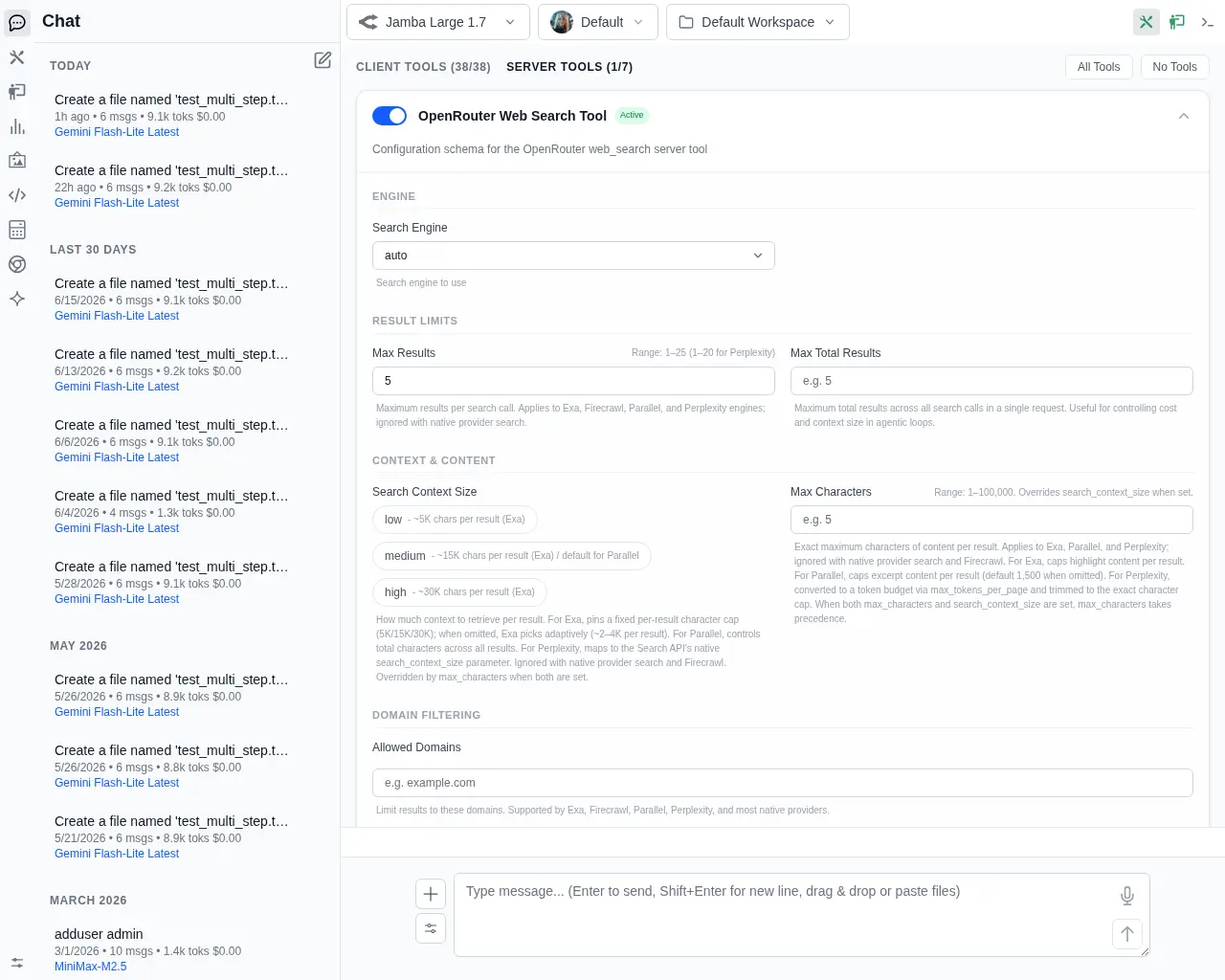
Server Tools
Server Tools are server-side tool definitions that allow LLM providers or users to configure dynamic parameters and UI forms for the tools. They enable custom behaviors, API integrations, and customized parameters on a per-provider or per-tool basis.
There's built-in support for both OpenRouter Server Tools and Anthropic's Server Tools, letting you enable provider-hosted capabilities like web search, web fetch, and code execution directly from the chat UI without any client-side setup.
1. Tool Definitions and JSON Schema
The definitions of all server tools are defined in server-tools.json in standard JSON Schema format. This schema format is parsed by the frontend to:
- Dynamically generate the configuration UI: Build inputs, dropdowns, switches, and sliders.
- Generate the tool definition JSON: Used when presenting the tool capability to the LLM model during a chat or agentic run.
Example Schema Definition
In server-tools.json, each tool is defined as an object in a JSON array:
[
    {
        "$schema": "http://json-schema.org/draft-07/schema#",
        "$id": "tool://openrouter/web_search",
        "title": "OpenRouter Web Search Tool",
        "description": "Configuration schema for the OpenRouter web_search server tool",
        "type": "object",
        "properties": {
            "type": {
                "type": "string",
                "const": "openrouter:web_search",
                "title": "Tool Type",
                "ui": {
                    "widget": "hidden"
                }
            },
            "parameters": {
                "type": "object",
                "title": "Search Parameters",
                "properties": {
                    "engine": {
                        "type": "string",
                        "title": "Search Engine",
                        "default": "auto",
                        "enum": ["auto", "native", "exa", "firecrawl", "parallel", "perplexity"],
                        "ui": {
                            "widget": "select"
                        }
                    },
                    "max_results": {
                        "type": "integer",
                        "title": "Max Results",
                        "default": 5,
                        "minimum": 1,
                        "maximum": 25,
                        "ui": {
                            "widget": "number"
                        }
                    }
                }
            }
        }
    }
]
Overriding Server Tools
By default, the application uses the bundled server-tools.json file. However, users can customize and override these definitions by placing their own server-tools.json file in their user configuration directory:
- User override path:
~/.llms/user/default/server-tools.json(or~/.llms/user/server-tools.json)
If this file is present, the server loads it instead of the bundled version, allowing you to define custom server tools or adjust existing ones.
2. Registering Tools in llms.json
Providers specify which server tools they support via the "server_tools" array of tool $ids in their provider configuration in llms.json.
INFO
Only providers that define "server_tools" will have the SERVER TOOLS tab enabled and configure their UI to use them
Example llms.json Provider Snippet
If upgrading from an older version of llms.json, you can add the "server_tools" array to your provider definitions like this:
{
    "providers": {
        "anthropic": {
            "enabled": true,
            "server_tools": [
                "tool://anthropic/web_search",
                "tool://anthropic/web_fetch",
                "tool://anthropic/code_execution",
                "tool://anthropic/advisor",
                "tool://anthropic/tool_search",
                "tool://anthropic/mcp_toolset"
            ]
        },
        "openrouter": {
            "enabled": true,
            "server_tools": [
                "tool://openrouter/web_search",
                "tool://openrouter/datetime",
                "tool://openrouter/image_generation",
                "tool://openrouter/web_fetch",
                "tool://openrouter/fusion",
                "tool://openrouter/advisor",
                "tool://openrouter/subagent"
            ]
        }
    }
}
3. Configuring Server Tools in the UI
You can toggle and configure tools dynamically from the chat interface:
Step 1: Open the Tools Panel
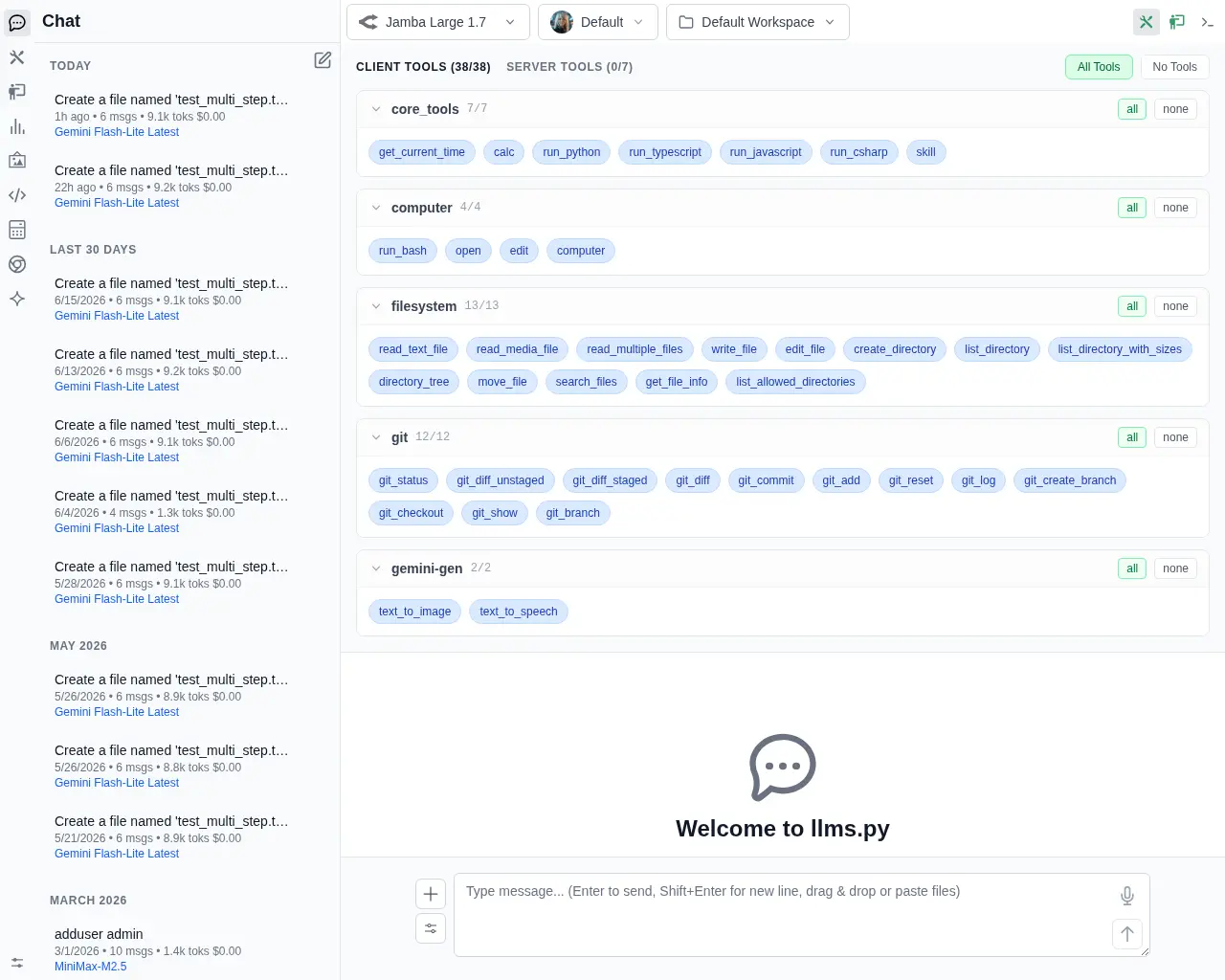
Click the Tools icon (wrench symbol) in the top-right toolbar. This will slide down the tools panel, which defaults to the Client Tools tab showing your active client-side plugins.
Step 2: Switch to the Server Tools Tab
Click the SERVER TOOLS tab. This tab displays a list of server-configured tools available for the currently selected model's provider.
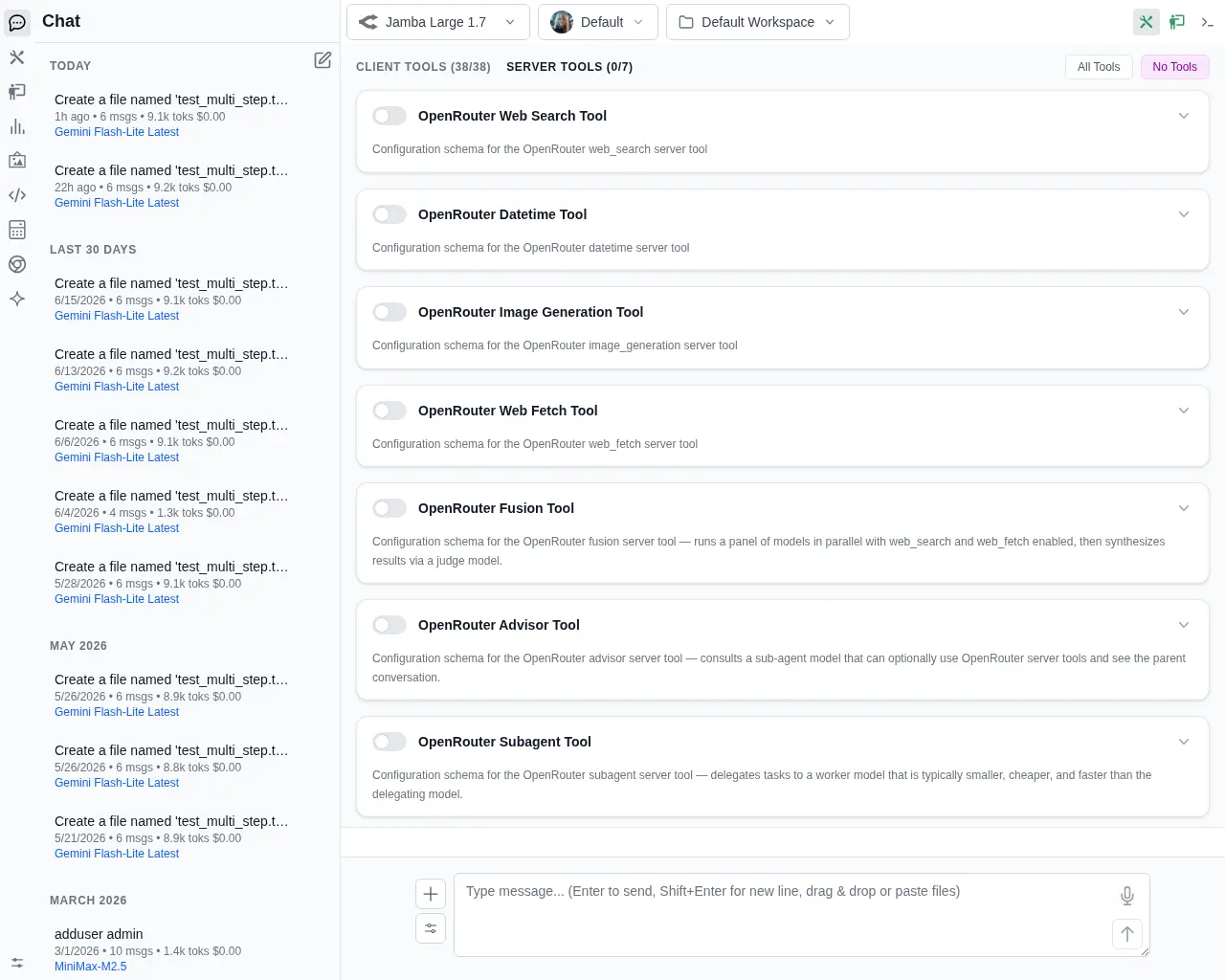
Step 3: Configure and Toggle Tools
Click on any tool header (e.g., Web Search) to expand its configuration form. Enable the tool using the toggle switch and customize its properties (e.g. search engine, max results) as defined by the JSON Schema.