Core Tools
Built-in essential tools for memory persistence, file operations, math expressions and code execution.
These tools defined in the core_tools extension provide essential functionality for LLMs to interact with their environment, perform calculations, and manage persistent data.
See Tools Docs for details on registering and using your own tools.
Math & Logic
calc(expression: str) -> str- Evaluate a mathematical expression. Supports arithmetic, comparison, boolean operators, and common math functions.- expression: The mathematical expression string (e.g.,
sqrt(16) + 5).
- expression: The mathematical expression string (e.g.,
Utilities
get_current_time(tz_name: str = None) -> str- Get the current time in ISO-8601 format.- tz_name: Optional timezone name (e.g., 'America/New_York'). Defaults to UTC.
File System Tools
The built-in computer extension filesystem.py tools provide a native Python implementation of Anthropic's node.js Filesystem MCP Server tools:
read_text_file- Read complete contents of a file as textread_media_file- Read an image or audio fileread_multiple_files- Read multiple files simultaneouslywrite_file- Create new file or overwrite existing (exercise caution with this)edit_file- Make selective edits using advanced pattern matching and formattingcreate_directory- Create new directory or ensure it existslist_directory- List directory contents with [FILE] or [DIR] prefixeslist_directory_with_sizes- List directory contents with [FILE] or [DIR] prefixes, including file sizesmove_file- Move or rename files and directoriessearch_files- Recursively search for files/directories that match or do not match patternsdirectory_tree- Get recursive JSON tree structure of directory contentsget_file_info- Get detailed file/directory metadatalist_allowed_directories- List all directories the server is allowed to access
Computer Use
The built-in computer extension transforms AI agents into autonomous computer operators. Based on Anthropic's computer use tools, it enables agents to see your screen, control the mouse and keyboard, execute shell commands, and edit files - just like a human sitting at the computer.
This unlocks powerful capabilities that traditional API-based tools cannot achieve:
- Visual Verification: Confirm that code actually renders correctly in a browser
- Desktop Automation: Control any GUI application - web browsers, IDEs, terminals
- End-to-End Workflows: Chain together multiple applications in a single task
- Legacy Applications: Automate software that lacks APIs
For example, an agent can write a web application, open a browser, and capture a screenshot to prove it works:
See the Computer Use docs for complete usage details.
Code Execution Tools
LLMS includes a suite of tools for executing code in various languages within a sandboxed environment. These tools are designed to allow the agent to run scripts, perform calculations, and verify logic safely.
Supported Languages
The following tools are available:
run_python(code)- Executes Python code.run_javascript(code)- Executes JavaScript code (usesbunornode).run_typescript(code)- Executes TypeScript code (usesbunornode).run_csharp(code)- Executes C# code (usesdotnet runwith .NET 10+ single-file support).
These tools allow LLMs to run code snippets dynamically as part of their reasoning process.
Python and C# Examples
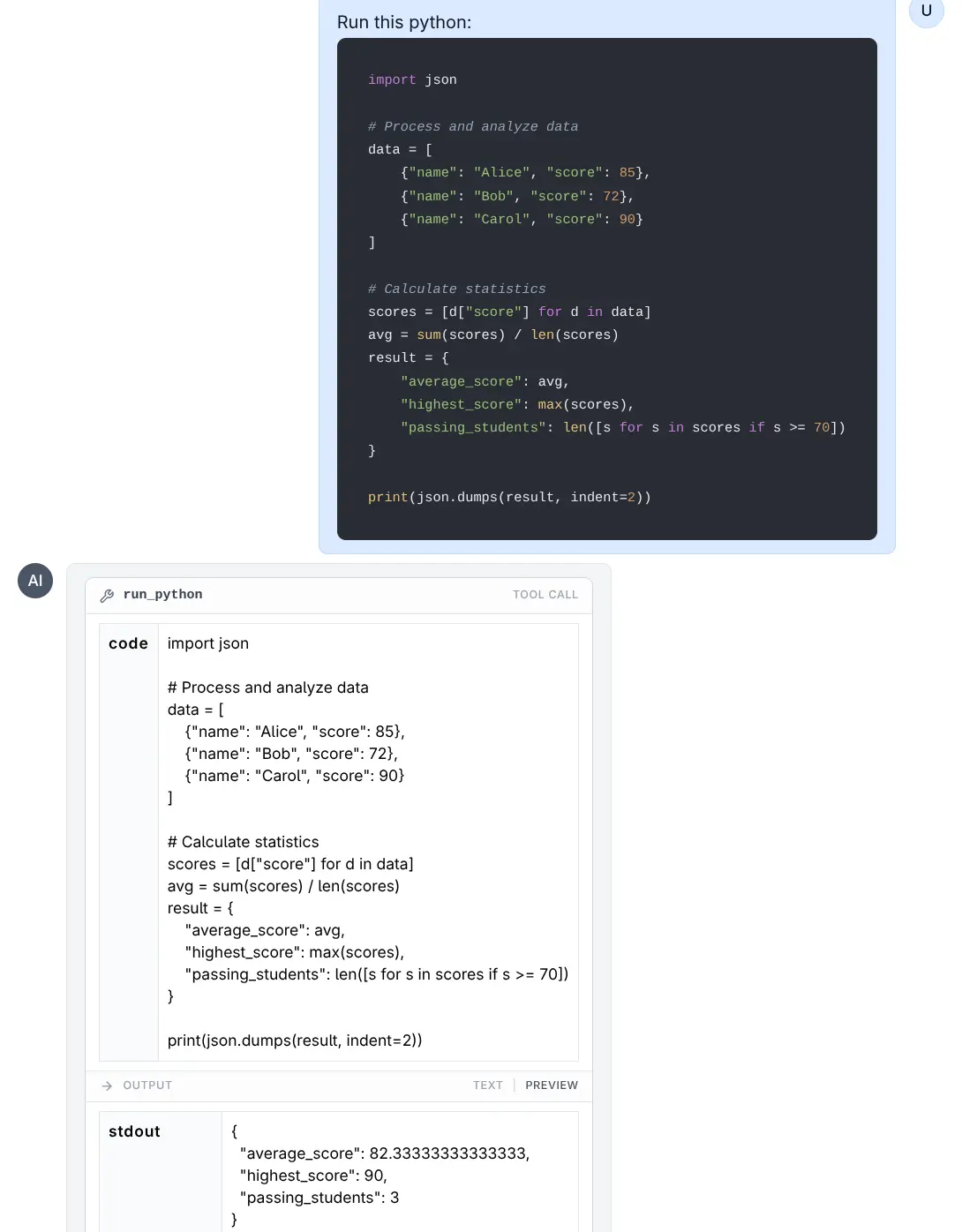
Run Python
Click to view full size
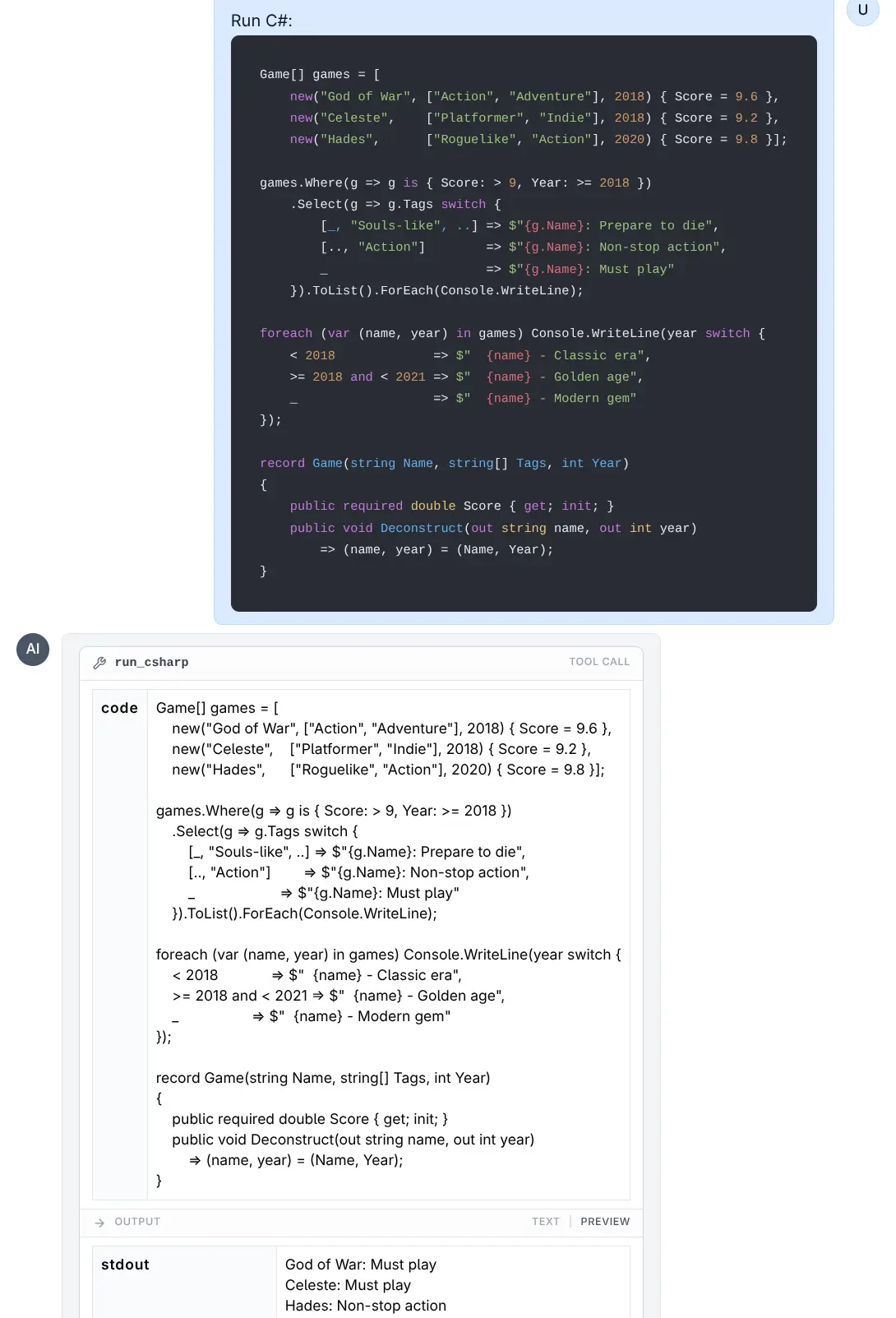
Run C#
Click to view full size
JavaScript and TypeScript Examples
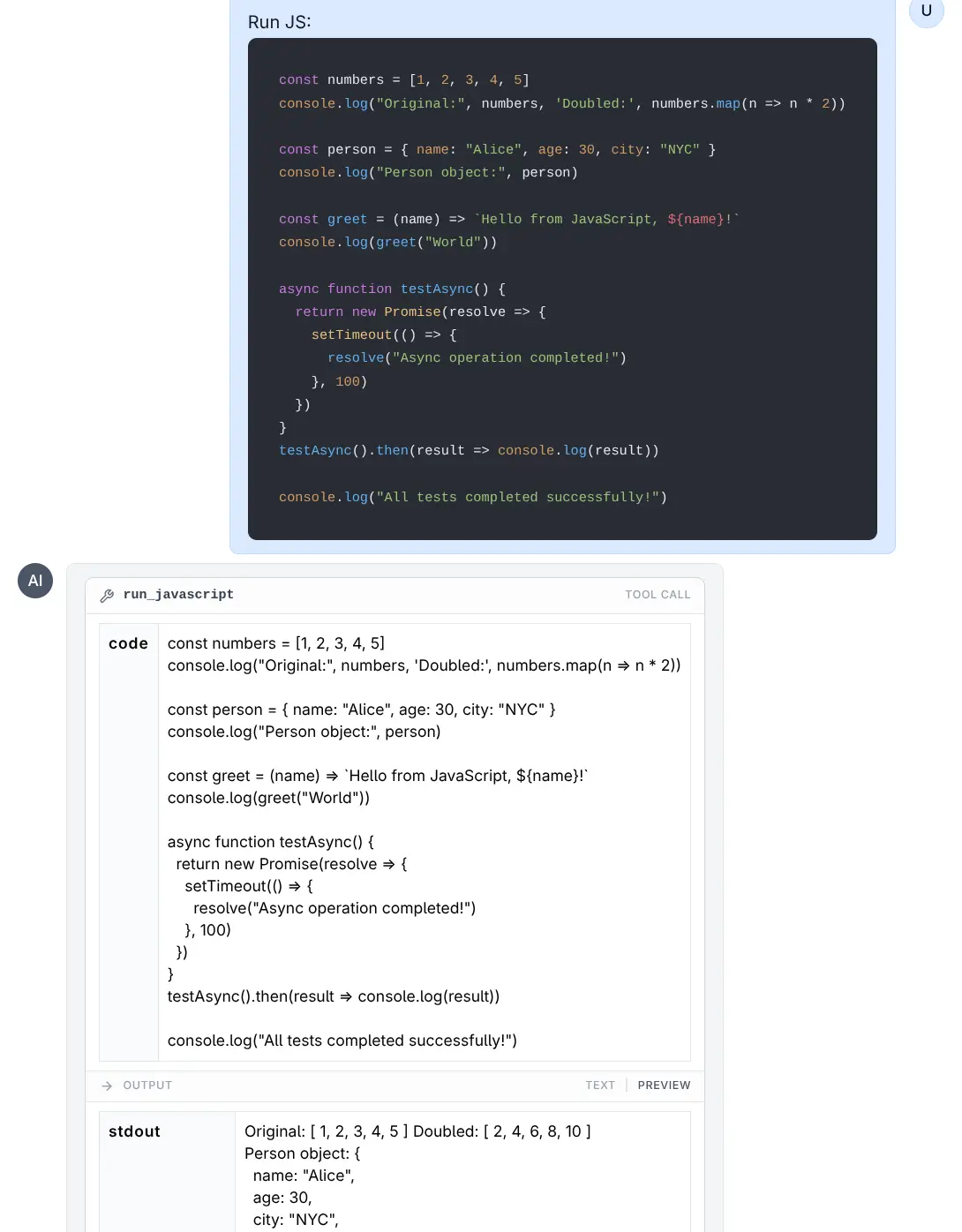
Run JavaScript
Click to view full size
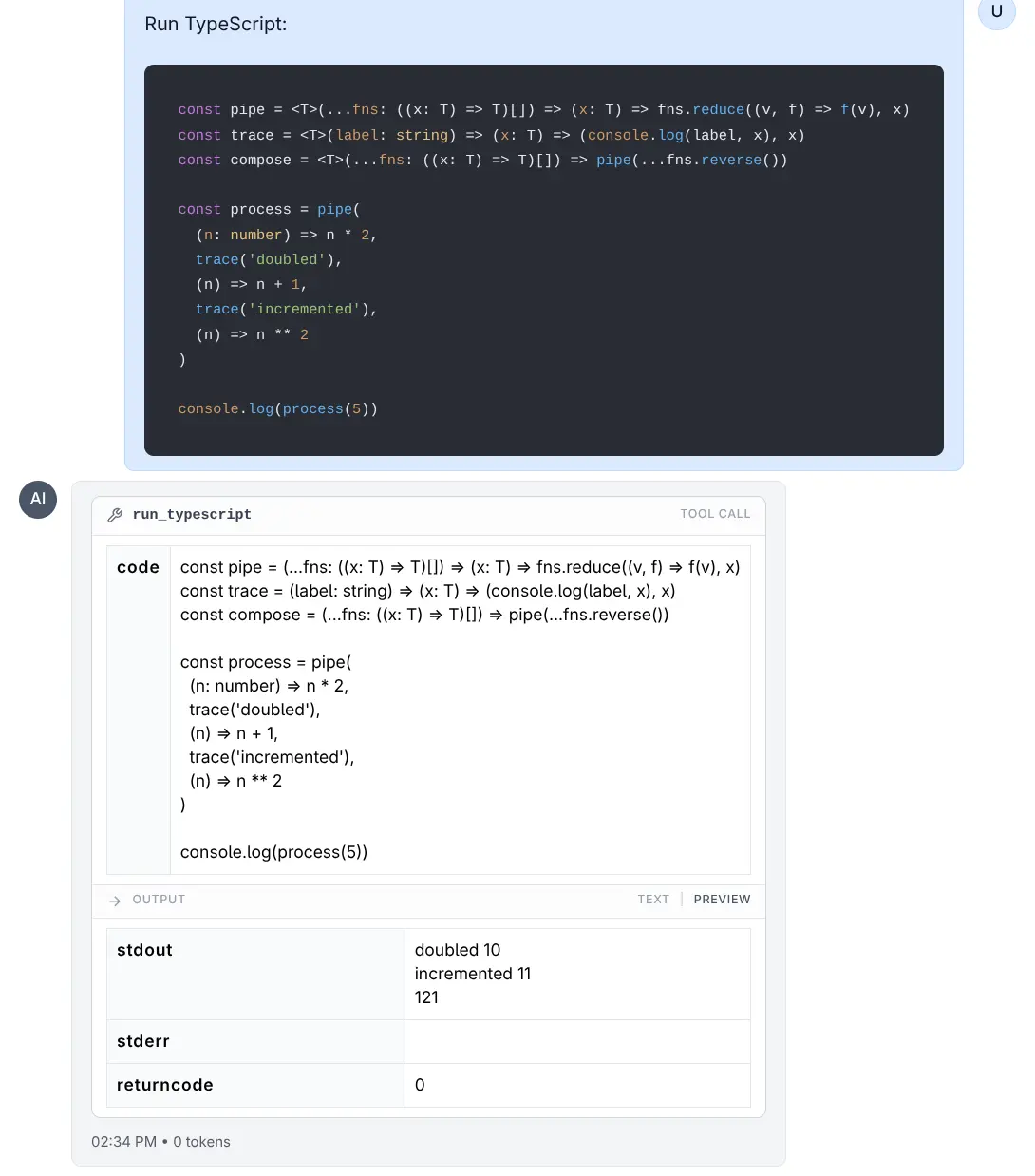
Run TypeScript
Click to view full size
Sandbox Environment
Code execution happens in a temporary, restricted environment to ensure safety and stability.
Resource Limits
To prevent infinite loops or excessive resource consumption, the following limits are enforced using ulimit (on Linux/macOS):
- Execution Time: The process is limited to 5 seconds of CPU time.
- Memory: The process is limited to 8 GB virtual memory limit.
File System
- Each execution runs in a clean, temporary directory.
- Converting
LLMS_RUN_ASwill try tochmod 777this directory so the target user can write to it. - Note: Files created during execution are transient and lost after the tool completes, unless their content is printed to stdout.
Environment Variables
- The environment is cleared to prevent leakage of sensitive tokens or API keys.
- Only the
PATHvariable is preserved to ensure standard tools function correctly. - For C# (
dotnet),HOMEandDOTNET_CLI_HOMEare set to the temporary directory to allow write access for the runtime intermediate files.
Running with Lower Privileges (LLMS_RUN_AS)
By default, code runs as the user running the LLMS process. For enhanced security, you can configure the tools to execute code as a restricted user (e.g., nobody or a dedicated restricted user).
Configuration
Set the LLMS_RUN_AS environment variable to the username you want code to run as.
Example:
export LLMS_RUN_AS=nobodyRequirements for LLMS_RUN_AS
- Sudo Access: The user running the LLMS process must have
sudoprivileges configured to run commands as the target user without a password. - Permissions: The LLMS process attempts to grant read/write access to the temporary execution directory for the target user (via
chmod 777).
Example sudoers configuration:
# Allow 'mythz' to run commands as 'nobody' without password
mythz ALL=(nobody) NOPASSWD: ALL
How it Works
When LLMS_RUN_AS is set:
- A temporary directory is created.
- Permissions on the directory are relaxed so the restricted user can access it.
- The command is executed wrapped in
sudo -u <user>.- Example:
sudo -u nobody bash -c 'ulimit -t 5; ... python script.py'
- Example:
This execution model ensures that even if malicious code escapes the ulimit sandbox or accesses the filesystem, it is restricted by the OS-level permissions of the nobody (or specified) user.
Analytics
Track costs, tokens, and monitor usage across all providers
Server Tools
Server Tools are server-side tool definitions that allow LLM providers or users to configure dynamic parameters and UI forms for the tools. They enable custom behaviors, API integrations, and customized parameters on a per-provider or per-tool basis.