Multimodal
Image Support
Process and analyze images with vision-capable models
Features
- Image Analysis: Describe, analyze, and extract information from images
- Multiple Formats: PNG, WEBP, JPG, JPEG, GIF, BMP, TIFF, ICO
- Flexible Input: Local files, remote URLs, or data URIs
- Auto-Conversion: Automatic format conversion and resizing
- Drag & Drop: Easy upload in the web UI
Using Images in CLI
# Local image file
llms --image ./screenshot.png "What's in this image?"

# Remote image URL
llms --image https://example.com/photo.jpg "Describe this photo"

# Data URI
llms --image "data:image/png;base64,$(base64 -w 0 image.png)" "Analyze this"

# With specific vision model
llms -m gemini-2.5-flash --image chart.png "Analyze this chart"

# Combined with system prompt
llms -s "You are a data analyst" --image graph.png "What trends do you see?"
Using Images in UI
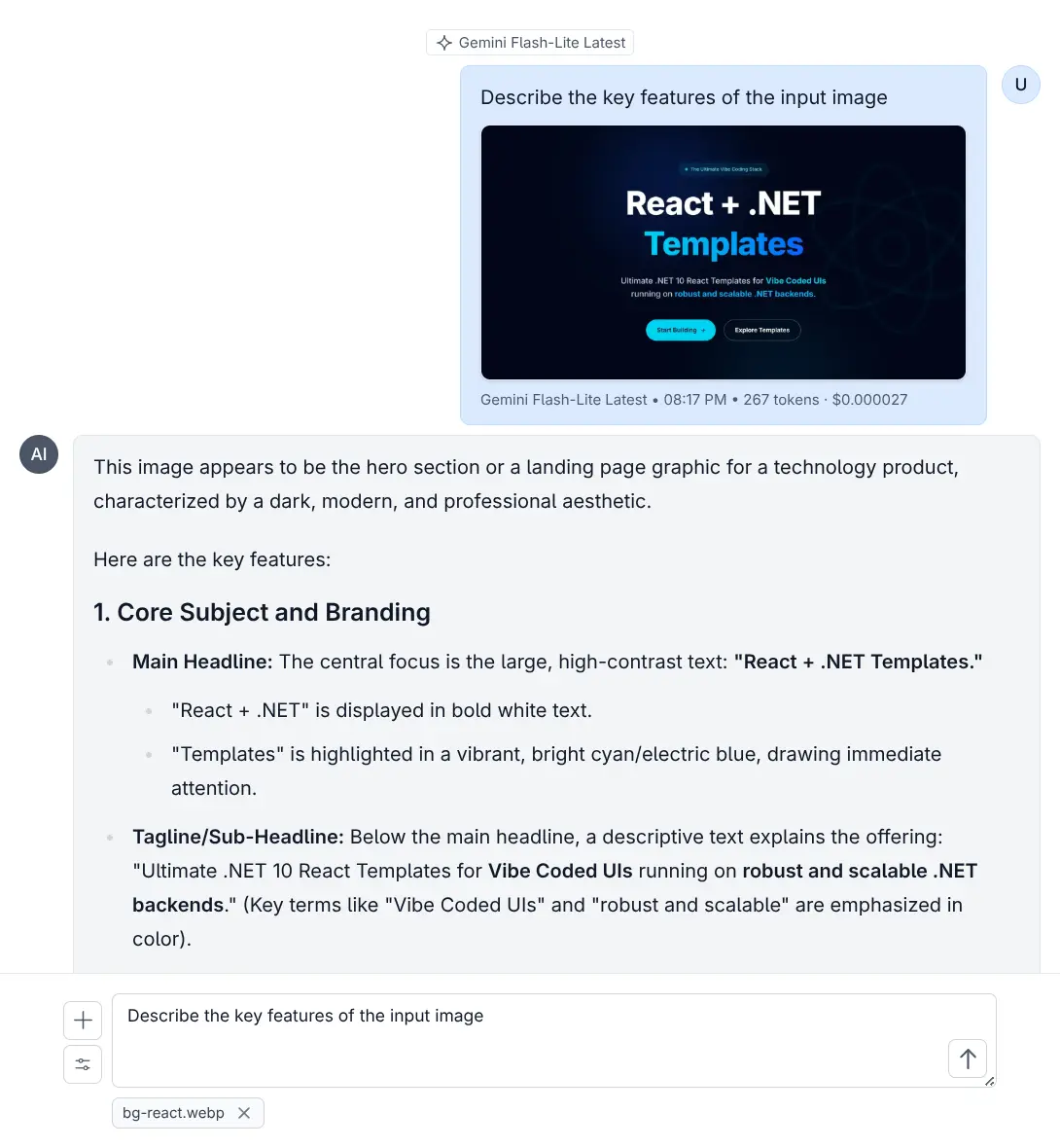
Simply drag and drop images into the chat or click the attach button to upload.
Vision-Capable Models
Popular models that support image analysis:
- OpenAI: GPT-4o, GPT-4o-mini, GPT-4.1
- Anthropic: Claude Sonnet 4.0, Claude Opus 4.1
- Google: Gemini 2.5 Pro, Gemini Flash
- Qwen: Qwen2.5-VL, Qwen3-VL, QVQ-max
- Ollama: qwen2.5vl, llava
Custom Image Template
Use custom chat templates for image requests:
{
  "model": "qwen2.5vl",
  "messages": [
    {
      "role": "user",
      "content": [
        {
          "type": "image_url",
          "image_url": {
            "url": ""
          }
        },
        {
          "type": "text",
          "text": "Caption this image"
        }
      ]
    }
  ]
}
llms --chat image-request.json --image photo.jpgImage Limits & Auto-Conversion
Configure image size limits and auto-conversion in llms.json:
{
  "convert": {
    "max_image_size": 2048,
    "max_image_length": 20971520,
    "webp_quality": 90
  }
}- Images exceeding
max_image_sizepixels are resized - Images exceeding
max_image_lengthbytes are converted to WebP - Quality controlled by
webp_quality(0-100)
Use Cases
- Product Analysis: Describe products from images
- Chart Reading: Extract data from charts and graphs
- Document OCR: Extract text from images of documents
- Visual Q&A: Answer questions about image content
Tips for Best Results
- Use high-quality images for better analysis
- Crop to focus on relevant content
- Use appropriate models for the task (e.g., Gemini for diagrams)