Agent Browser
An agent browser workspace for building and running automated browser scripts with AI assistance, live previews, debug log, and an interactive element inspector
The built-in browser extension provides an integrated environment for creating, editing, and running automated browser scripts powered by Vercel's agent-browser.
- 🖥️ Live Browser Preview - Clickable real-time screenshot with full mouse, keyboard, and scroll interaction
- 📋 Element Inspector - Auto-refreshing snapshot giving scripts and AI a precise map of interactive elements
- ✍️ AI Script Generation - Describe what you want in English and the AI generates the full automation script
- 🤖 AI-Assisted Editing - Select lines in the editor and describe changes to iterate on scripts incrementally
- ▶️ Run Selected Text - Run highlighted portions of a script to test individual steps in isolation
- 💾 Saved Scripts Library - Build a library of reusable browser automations accessible from the sidebar
Requirements
agent-browser CLI must be installed and available on your PATH, see agent-browser.dev/installation for info.
WARNING
local environmentsLLMS_MODE=localLocal Mode Only
To prevent potentially dangerous extensions that allow running bash commands from being enabled in untrusted environments, change the mode to public to indicate it's being hosted.
LLMS_MODE=publicWhich will prevent extensions like browser from being enabled, alternatively it can be disabled as normal.
Getting Started
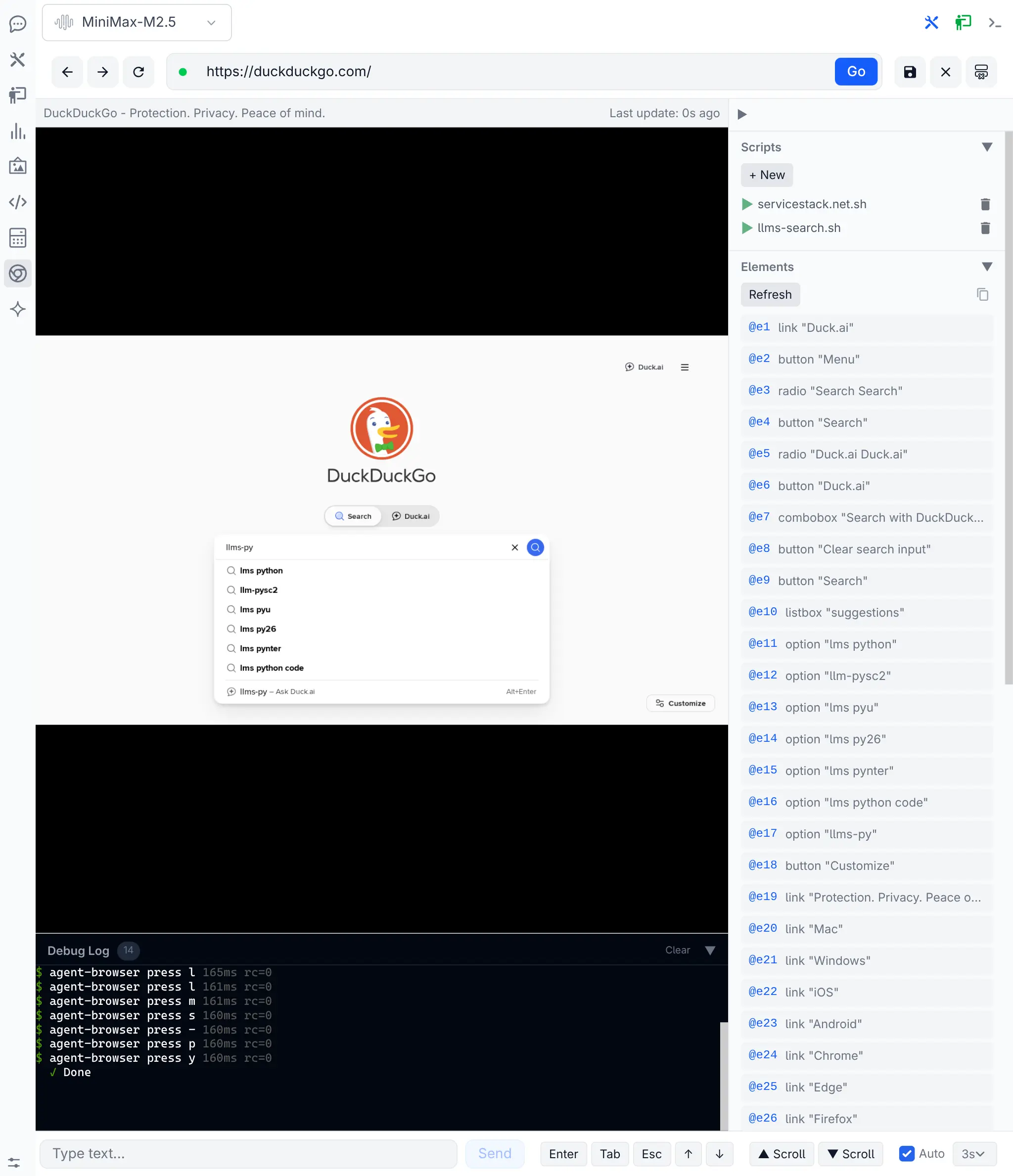
Open the Browser page from the left sidebar icon. The interface has four main areas:
- Navigation bar - enter URLs, go back/forward, reload, save session state, or close the browser
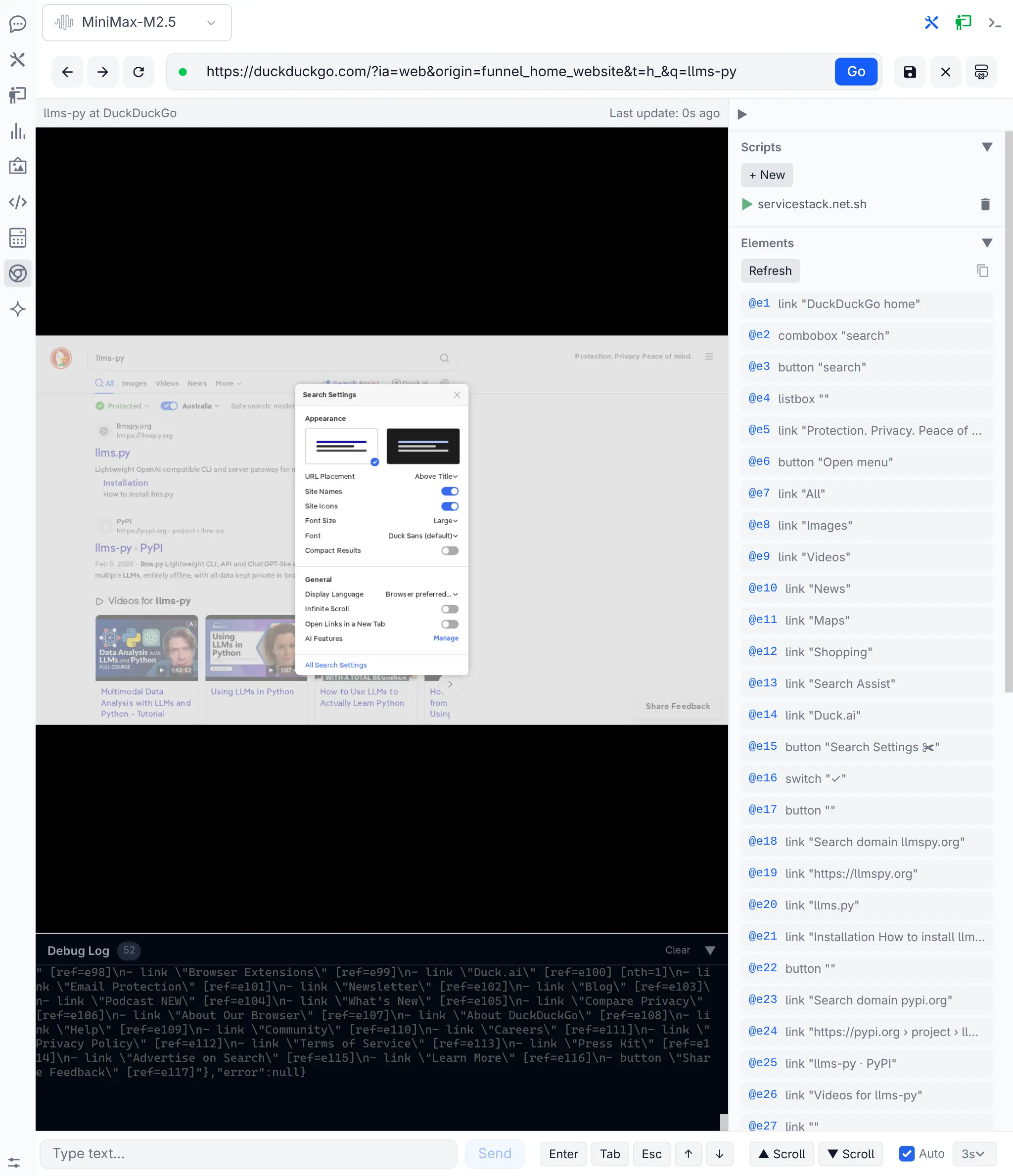
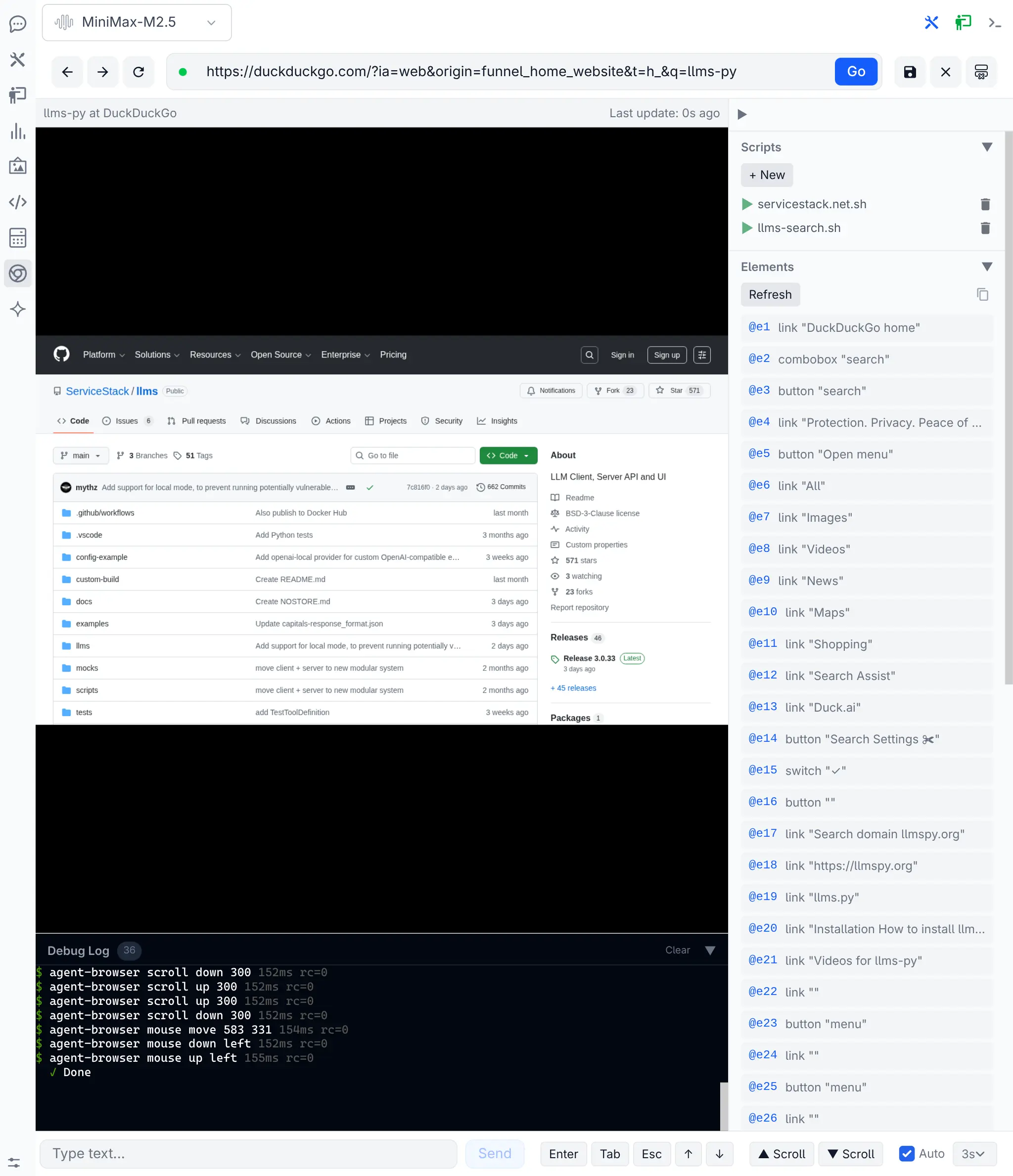
- Screenshot view - live view of the browser page, click directly on it to interact
- Script editor - write and run automation scripts with AI assistance
- Debug log - real-time terminal showing every
agent-browsercommand and its output
Opening a Page
Type a URL into the address bar and press Enter or click Go. The extension launches a headless agent-browser, navigates to the URL, waits for the network to settle, then displays a screenshot. A green indicator dot next to the URL bar shows the browser is running.
Interactive Browsing
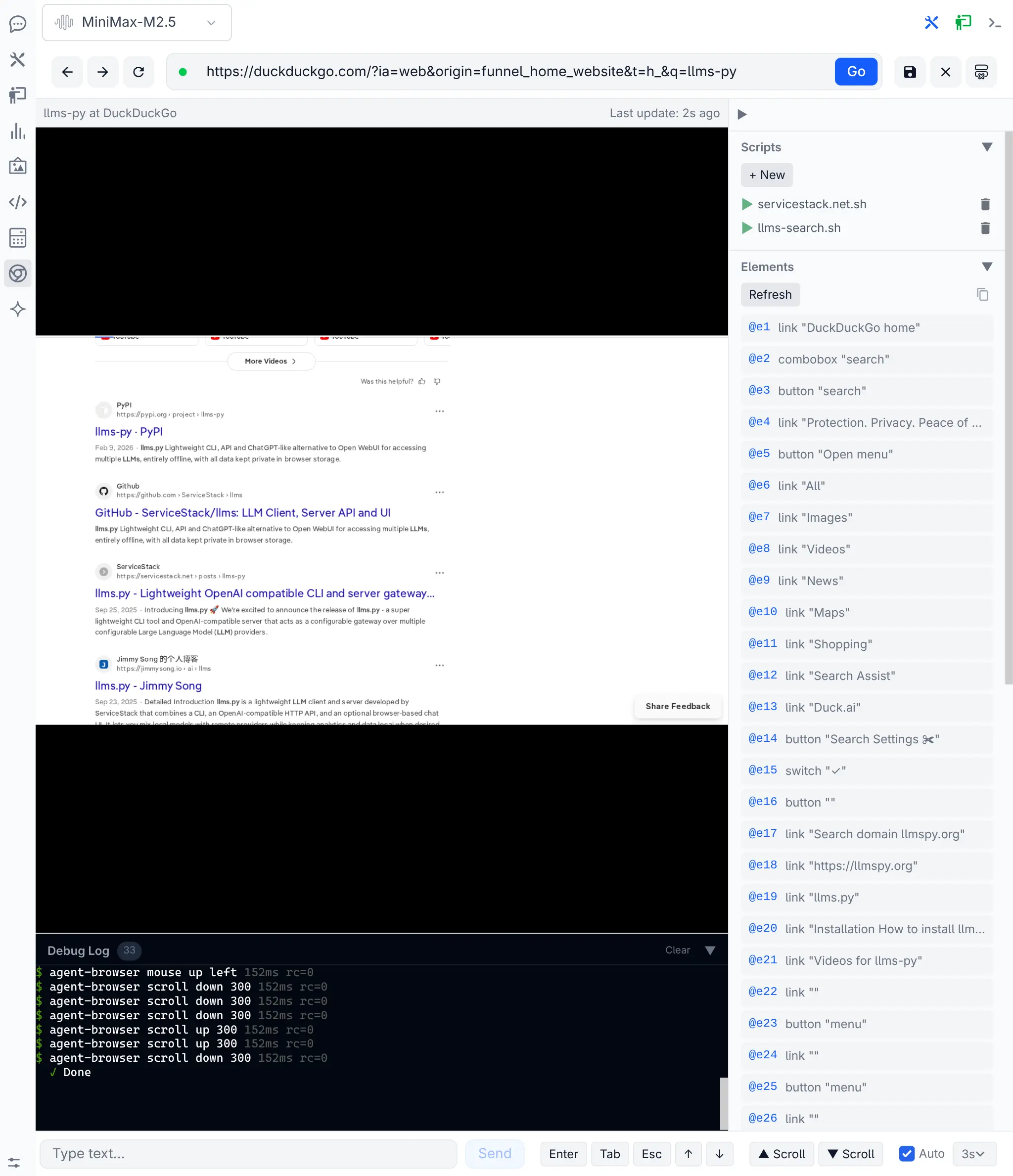
The screenshot view is clickable. Click anywhere on the rendered page to send a click at those coordinates to the actual browser. Combined with the quick action bar at the bottom, you can interact with pages without writing any code:
- Type text - enter text in the input field and click Send to type it into the focused element
- Key buttons - press Enter, Tab, Escape, or arrow keys with a single click
- Scroll - scroll the page up or down
The screenshot auto-refreshes on a configurable interval (1s, 3s, 5s, or 10s) so you always see the current state. Toggle auto-refresh off when you want a stable view.
Browser URL
Click to view full size
Browser dialog
Click to view full size
Browser scroll
Click to view full size
Browser click
Click to view full size
Element Inspector
The Elements panel in the sidebar shows all interactive elements on the current page. Each element
is identified by a ref (e.g. @e1, @e2) and a description of what it is (its role and name).
- Click Refresh to take a fresh snapshot and update the element list
- Click any element in the list to click it in the browser
- Click the copy button to copy the raw snapshot text to your clipboard for use in scripts
Element refs are the key to writing reliable automation scripts. They are short identifiers
assigned by agent-browser snapshot -i that map directly to interactive DOM elements. Use them
with commands like agent-browser click @e1 or agent-browser fill @e2 "text".
Important: Refs are invalidated whenever the page changes. After any navigation, form submission, or dynamic content load, you must take a new snapshot to get fresh refs.
Script Editor
The script editor is a full-featured code editor for writing agent-browser automation scripts
as bash files. Open it by clicking + New in the Scripts panel or by clicking an existing script name.
Editor Features
- Syntax highlighting via CodeMirror with shell mode and the Catppuccin Mocha theme
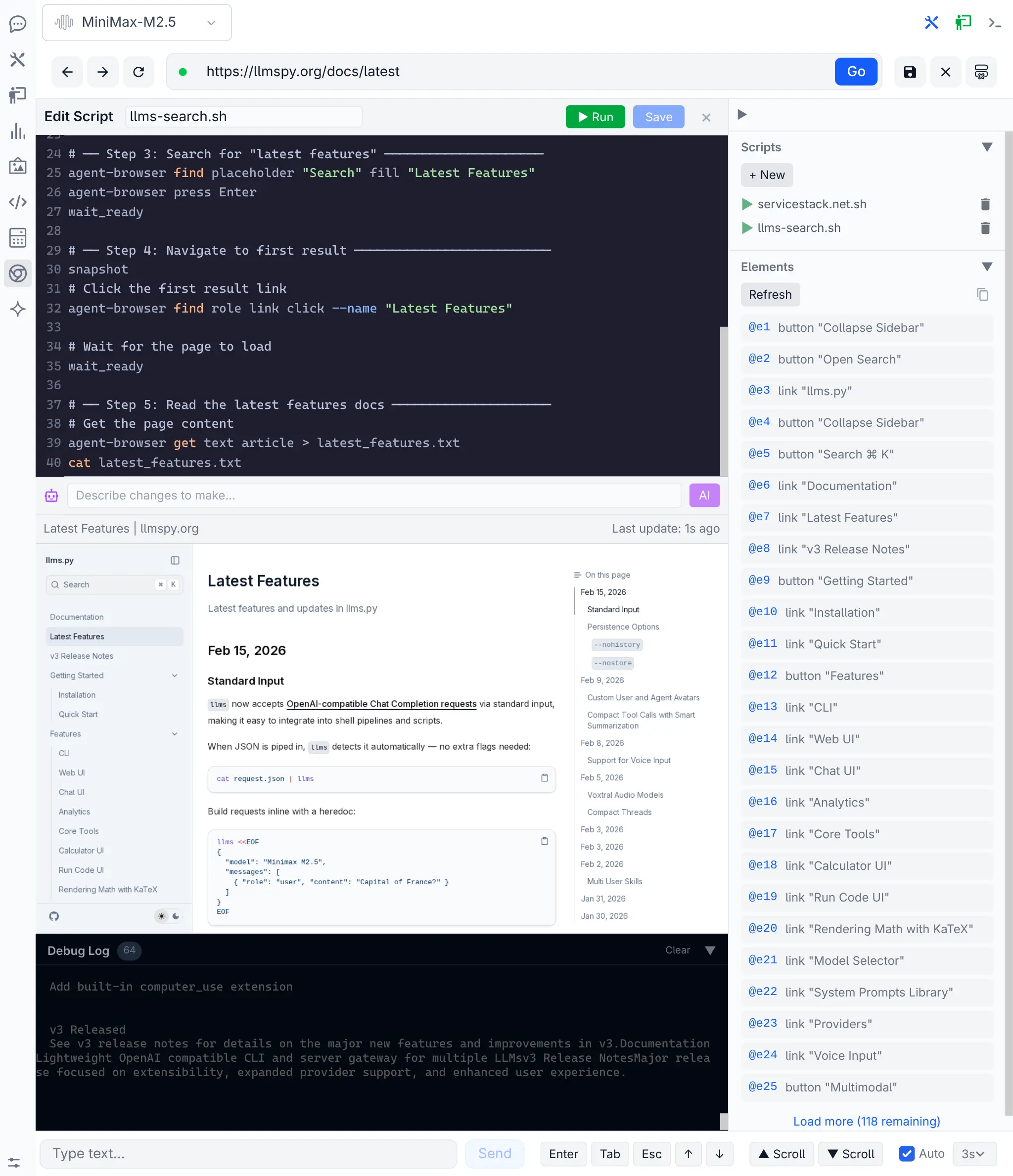
- Run (Ctrl+Enter) - saves and executes the full script, or just the selected text if you have a selection
- Save (Ctrl+S) - persists the script to disk
- Auto-save on run - the script is automatically saved before execution
Running Selected Text
Select a portion of your script and click Run selected text (or press Ctrl+Enter). Only the highlighted code executes. This is useful for testing individual commands or stepping through a script one section at a time.
AI Script Generation
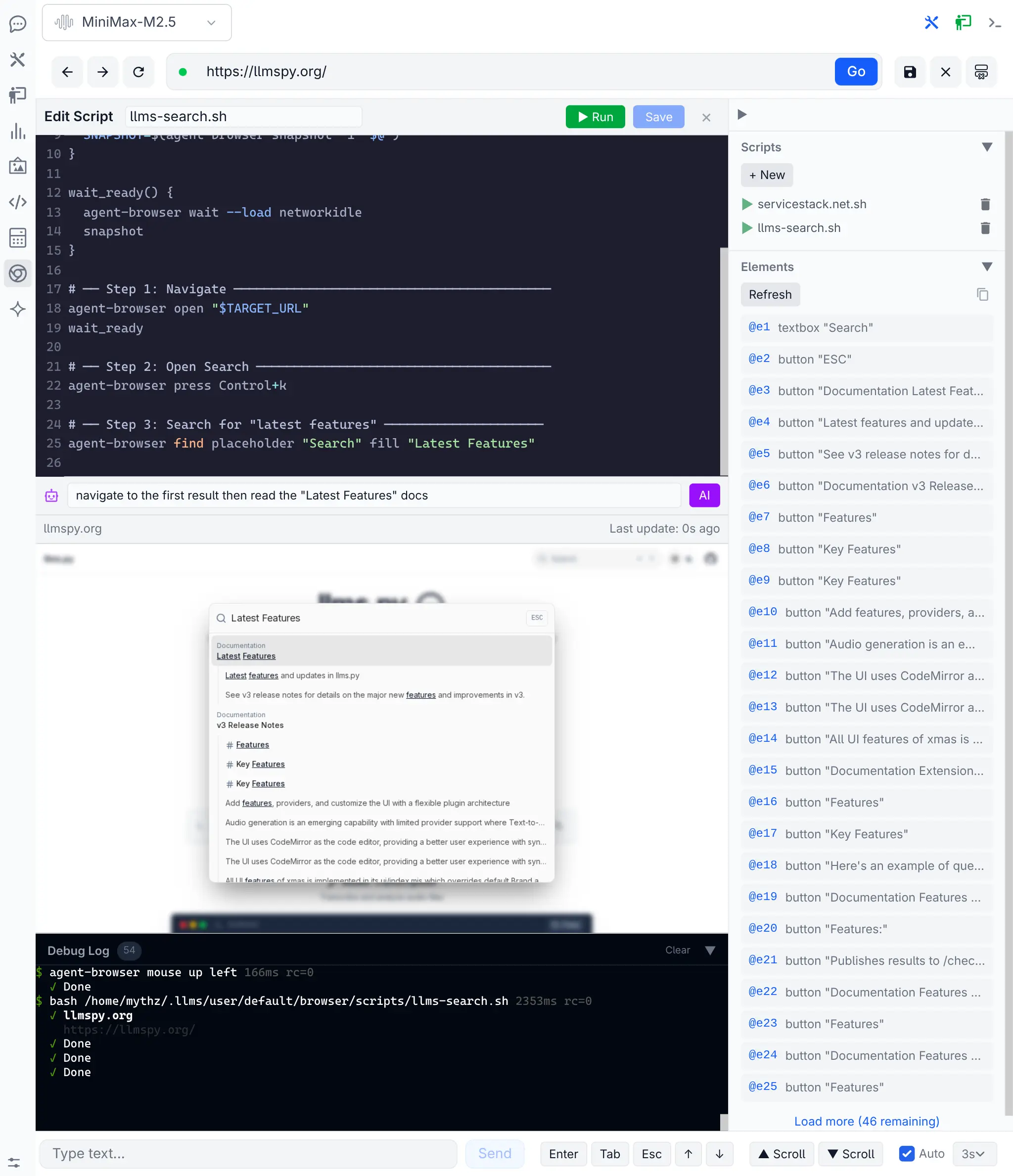
The AI prompt bar at the bottom of the editor lets you generate or modify scripts using natural language. Type a description of what you want to automate and click AI or press Enter.
For a new script, describe the full task: "Open duckduckgo, search for 'agent-browser', click the first result"
The AI generates a complete bash script using agent-browser commands following best practices
(snapshot-first workflow, proper wait handling, ref lifecycle management). The generated script
replaces the editor contents so you can review, edit, and run it.
For an existing script, describe the change: "Add error handling for the login step" or "Wait longer after form submission"
Browser script generate
Click to view full size
Browser run script
Click to view full size
Script Generation Configuration
You can configure which model is used for script generation with the BROWSER_MODEL environment variable which otherwise fallbacks to using the default text model in your llms.json config.
BROWSER_MODEL="moonshotai/kimi-k2.5"The comprehensive generate-script.txt (derived from Vercel's Agent Browser Skill) is used as the system prompt providing detailed instructions and examples to guide AI in its script generation.
You can also customize the system prompt by copying the generate-script.txt file into your profile directory at ~/.llms/users/default/browser/generate-script.txt and modifying it as needed to tailor the AI's script generation behavior to your specific use cases or preferences
Script Management
Scripts are saved as .sh files in your user's browser/scripts/ directory. The Scripts panel
in the sidebar lists all saved scripts with controls to:
- Run (play button) - execute the script immediately
- Edit (click the name) - open in the script editor
- Delete (trash icon) - remove the script with confirmation
Scripts are standard bash files. You can also edit them with any external editor and they will appear in the list.
Debug Log
The debug log at the bottom of the page shows every agent-browser command executed by the
extension in real-time. It displays in an xterm.js terminal with color-coded output:
- Green - successful commands with their return code and execution time
- Red - failed commands with error output
- Gray - commands currently in progress
The log shows the full command string, stdout/stderr output, return code, and execution duration in milliseconds. This is essential for understanding what happened during script execution and diagnosing failures.
- Drag the resize handle to adjust the log height
- Click Clear to reset the log
- Click the Debug Log header to collapse or expand the panel
Session State
The browser maintains a persistent profile directory with cookies, localStorage, and other browser state. This means you can log into a site and stay logged in across browser restarts.
Use the Save Session button (disk icon in the header bar) to explicitly save the current session state. The state is automatically saved when you close the browser via the close button.
Session state is useful for:
- Preserving authentication across script runs
- Avoiding repeated login flows during development
- Building scripts that resume from a known state
Writing Automation Scripts
Browser automation scripts are bash files that call agent-browser CLI commands. The fundamental
workflow is:
#!/bin/bash
set -euo pipefail

# Helper functions
snapshot() {
  SNAPSHOT=$(agent-browser snapshot -i "$@")
}

wait_ready() {
  agent-browser wait --load networkidle
  snapshot
}

# 1. Navigate
agent-browser open "https://example.com"
wait_ready

# 2. Interact using refs from the snapshot
agent-browser fill @e1 "search query"
agent-browser click @e2

# 3. Wait and re-snapshot after page changes
wait_ready
Key Commands
Refer to the official agent-browser documentation for the full list of commands, but here are some of the most commonly used ones:
| Command | Description |
|---|---|
agent-browser open <url> | Navigate to a URL |
agent-browser snapshot -i | Get interactive elements with refs |
agent-browser click @ref | Click an element (--new-tab to open in new tab) |
agent-browser fill @ref "text" | Clear an input and type text |
agent-browser type @ref "text" | Type into element without clearing |
agent-browser select @ref "option" | Select a dropdown option |
agent-browser press Enter | Press key (Enter, Tab, Control+a) (alias: key) |
agent-browser scroll down 500 | Scroll (up/down/left/right) 500px |
agent-browser scrollintoview @ref | Scroll element into view |
agent-browser get text @ref | Get text content of an element |
agent-browser screenshot path.png | Capture a screenshot |
agent-browser state save file.json | Save session state |
agent-browser state load file.json | Restore session state |
agent-browser wait --load networkidle | Wait for network activity to settle |
The Snapshot-First Workflow
The most important concept in agent-browser automation is the snapshot-first workflow:
- Navigate to a page
- Wait for it to load (
wait --load networkidle) - Snapshot to get element refs (
snapshot -i) - Interact using those refs
- Re-snapshot after any action that changes the page
Refs like @e1 are ephemeral - they only refer to specific elements at the time the snapshot
was taken. After clicking a link, submitting a form, or triggering dynamic content, the refs are
stale and you must snapshot again.
Semantic Locators
When refs are unreliable or you want scripts that work regardless of page structure, use semantic locators instead:
agent-browser find text "Sign In" click
agent-browser find label "Email" fill "user@example.com"
agent-browser find role button click --name "Submit"
agent-browser find placeholder "Search" fill "query"
JavaScript Evaluation
Run JavaScript directly in the browser context with eval. For anything beyond simple
expressions, use --stdin to avoid shell quoting issues:
# Simple expression
agent-browser eval 'document.title'

# Complex JavaScript with heredoc
cat <<'EOF' | agent-browser eval --stdin
const links = document.querySelectorAll('a');
Array.from(links).map(a => a.href);
EOF

# Base64 encode script to avoid shell execution issues:
agent-browser eval -b "ZG9jdW1lbnQucXVlcnlTZWxlY3RvcignW3NyYyo9Il9uZXh0Il0nKQ=="
Authentication Patterns
Save and restore login state to avoid repeated authentication:
#!/bin/bash
set -euo pipefail

STATE_FILE="./auth-state.json"

if [[ -f "$STATE_FILE" ]]; then
    agent-browser state load "$STATE_FILE"
    agent-browser open "https://app.example.com/dashboard"
else
    agent-browser open "https://app.example.com/login"
    agent-browser wait --load networkidle
    agent-browser snapshot -i
    agent-browser fill @e1 "$USERNAME"
    agent-browser fill @e2 "$PASSWORD"
    agent-browser click @e3
    agent-browser wait --url "**/dashboard"
    agent-browser state save "$STATE_FILE"
fi
Parallel Sessions
Run multiple isolated browser sessions simultaneously:
agent-browser --session site1 open "https://site-a.com"
agent-browser --session site2 open "https://site-b.com"

agent-browser --session site1 snapshot -i
agent-browser --session site2 snapshot -i
Each session has independent cookies, storage, and browsing history.
Ad-Hoc Command Execution
The extension also supports running arbitrary bash commands through the exec endpoint. This is
used internally by the "Run selected text" feature, allowing you to execute any shell commands
with the AGENT_BROWSER_SESSION environment variable pre-set.
Keyboard Shortcuts
| Shortcut | Action |
|---|---|
| Ctrl+Enter | Run script (or selected text) |
| Ctrl+S | Save script |
| Enter (in URL bar) | Navigate to URL |
| Enter (in AI prompt) | Generate script |
| Enter (in type field) | Send typed text |
Troubleshooting
Browser Not Starting
- Verify
agent-browseris installed: runagent-browser --versionin your terminal - Ensure you are running in local mode (the extension is disabled for remote/non-local deployments)
Screenshots Show "Connecting" Placeholder
- The browser may still be loading. Wait a moment and the screenshot will update
- Check the debug log for errors from
agent-browsercommands
Stale Element Refs
If clicking an element does nothing or errors with "ref not found", the page has changed since the last snapshot. Click Refresh in the Elements panel to get fresh refs.
Script Timeout
Scripts have a 60 seconds execution timeout which can be overridden with:
AGENT_BROWSER_TIMEOUT=120For long-running automations consider breaking them into smaller scripts or increase individual command timeouts.
Kill Stuck Processes
If the browser becomes unresponsive, use the Kill all button (X icon with server stacks)
in the header bar to terminate all agent-browser processes and start fresh.