Publishing
Share your conversations, projects, decision recipes, and media with the world - straight from your workspace.
Sharing has two independent extensions:
- share_static exports project builds to a local folder that any static file server can serve. No publisher account is needed.
- share_llmspy publishes chat threads, projects, decision recipes, images, and audio to ai.llmspy.org. Remote publishing requires a connected publisher account.
The core Share panel presents the available destinations as tabs: Folder first, then ai.llmspy.org. Each extension can be enabled independently; you can use either, both, or neither.
Getting Started
1. Open the Share Panel
Click the Share icon in the top toolbar to open the publishing panel. Its subtle X closes the panel without disconnecting your publisher account.
Folder appears only when a project is selected or the open chat belongs to a project. When the open chat has no project, ai.llmspy.org becomes the selected tab if remote sharing is enabled. The Share icon is hidden when no tabs are available, and an open panel closes if its last tab disappears.
To export a project without an account, use Folder publishing. The connection steps below apply to ai.llmspy.org.
2. Register & Connect
Select ai.llmspy.org. If you haven't connected a publisher account yet, you'll see a registration form alongside a short list of benefits:
- ✅ Completely free and anonymous - no email or personal identification required
- ✅ Generate beautiful public read-only links
- ✅ Retain full formatting of code, tables, and prompts
- ✅ Revoke links or disconnect your account at any time
The embedded connection form identifies the requesting host and asks you to explicitly authorize it. Once connected, the publisher key is saved for your llms.py account on the server and a green Connected badge appears. It is separate from your model-provider keys.
3. Manage Your Connection
Once connected, a Connected: @username button appears in the top-right corner of the Share panel. Click it to view your API key, user info, or to Disconnect your account entirely.
Enable or Disable Sharing
Both extensions ship with llms.py. Disable either by adding its name to disable_extensions in
~/.llms/llms.json. For account-free folder publishing only:
{
  "disable_extensions": ["share_llmspy"]
}
Use ["share_static"] for remote sharing only, or ["share_static", "share_llmspy"] to disable both.
Merge these names into any existing disable list. Remove a name from the list to enable that extension
again, and restart llms. The LLMS_DISABLE environment variable can also disable extensions.
In C# AI.Chat, share_static is enabled and share_llmspy is disabled by default. Enable remote
sharing with chat.ShareLlmspy.Enabled = true before registering the plugin, and remove it from any
host disable lists. See C# sharing configuration.
Publishing to a Static Folder
Use Folder to export HTML, CSS, JavaScript, and other build output for a static server:
- Select a project, or open a chat belonging to it, then open Share → Folder.
- Choose the Build Directory relative to the project folder, such as
distorbuild. The saved project setting or detecteddist/folder is pre-filled; Browse selects another folder. Leave the field empty to export the project root. - Click Publish folder. After changes, click Update folder to replace the export.
No account, API key, or internet connection is needed. The export lives at
<export-root>/<local-user>/<project-folder>/; unauthenticated installations use default as the user.
The UI abbreviates the export root to ~/, for example:
Published 15m ago to ~/alice/my-project
http://127.0.0.1:8080/p/alice/my-project/
The timestamp's tooltip includes the full date and time. A project link opens in a new window. Publishing errors appear in the Folder panel with details about the failed operation and a dismiss button. Folder and remote publication status are separate, so publishing to one preserves the other result.
Static Sharing Configuration
In llms.py, configure ~/.llms/user/default/share_static/config.json (or the equivalent under your
configured data root). The file is optional; with no file, these defaults apply:
{
  "enabled": true,
  "directory": "./p",
  "basePath": "/p/",
  "baseUrl": ""
}| Setting | Purpose |
|---|---|
enabled | Set to false to remove the Folder tab. |
directory | Export root. Python defaults to ./p, relative to the directory where llms starts. Explicit relative paths use the startup working directory. |
basePath | Static server URL mount, default /p/. Used when baseUrl is empty or null. |
baseUrl | Public HTTP(S) URL including the mount path, such as http://127.0.0.1:8080/p or https://example.com/p. Its path overrides basePath. |
Restart the host after configuration changes. These are global host settings; named-user account
settings do not override them. With a configured baseUrl, the panel shows the full project link.
With an empty or null baseUrl, Python shows the URL path, such as /p/alice/my-project/.
C# AI.Chat uses App_Data/chat/user/default/share_static/config.json. Omit directory to default
to <WebContentDirectory>/p, typically wwwroot/p. An empty or null baseUrl produces a link on the
Chat UI's current domain, such as https://example.com/p/alice/my-project/, independent of /chat.
Code configuration is also supported through the typed ShareStatic.StaticPublish property;
see the C# guide.
Serve the Export
For a local Python example, run llms from /srv/www, set baseUrl to http://127.0.0.1:8080/p, and
serve that directory independently:
python -m http.server 8080 --directory /srv/wwwOpen http://127.0.0.1:8080/p/alice/my-project/ after publishing. llms can stop; the static server serves
the exported files without llms-py. In C#, exports under wwwroot/p can use the host's normal static-file
middleware. Custom export directories need a matching static server or middleware mapping.
Publishing injects a missing <base href="/p/alice/my-project/"> into the copied root index.html
(using the configured URL mount) and makes root-relative HTML src and href attributes relative.
Existing base elements, external URLs, scripts, and comments are preserved. Source files remain
unchanged. Build paths inside CSS/JavaScript and SPA history routing must support the chosen mount.
Updates remove stale exported files; failed copy, rewrite, or metadata updates restore the previous export.
Publishing Chat Threads
Share an entire conversation - including code blocks, tables, and rich formatting - as a permanent, styled web page.
How to Publish
- Open the Share panel while you have an active conversation.
- Select ai.llmspy.org, connect an account if needed, then select Publish Chat Thread.
- You'll see the thread title and model displayed in a summary card.
- Click Publish Thread (or Update Thread if previously published).
- A public URL is generated and displayed. Click the link to open it, or click the copy icon to grab the URL.
Beautiful Themes
Your published threads don't have to look generic. Choose from 8 beautiful themes to give your shared conversations a distinctive look - from the cool arctic tones of Nord and the neon-green glow of Matrix, to the moody Blue Smoke, warm Soft Pink, and the clean, airy Light Slate and Light Sky. Plain Light and Dark themes are also available if you prefer a more minimal presentation.
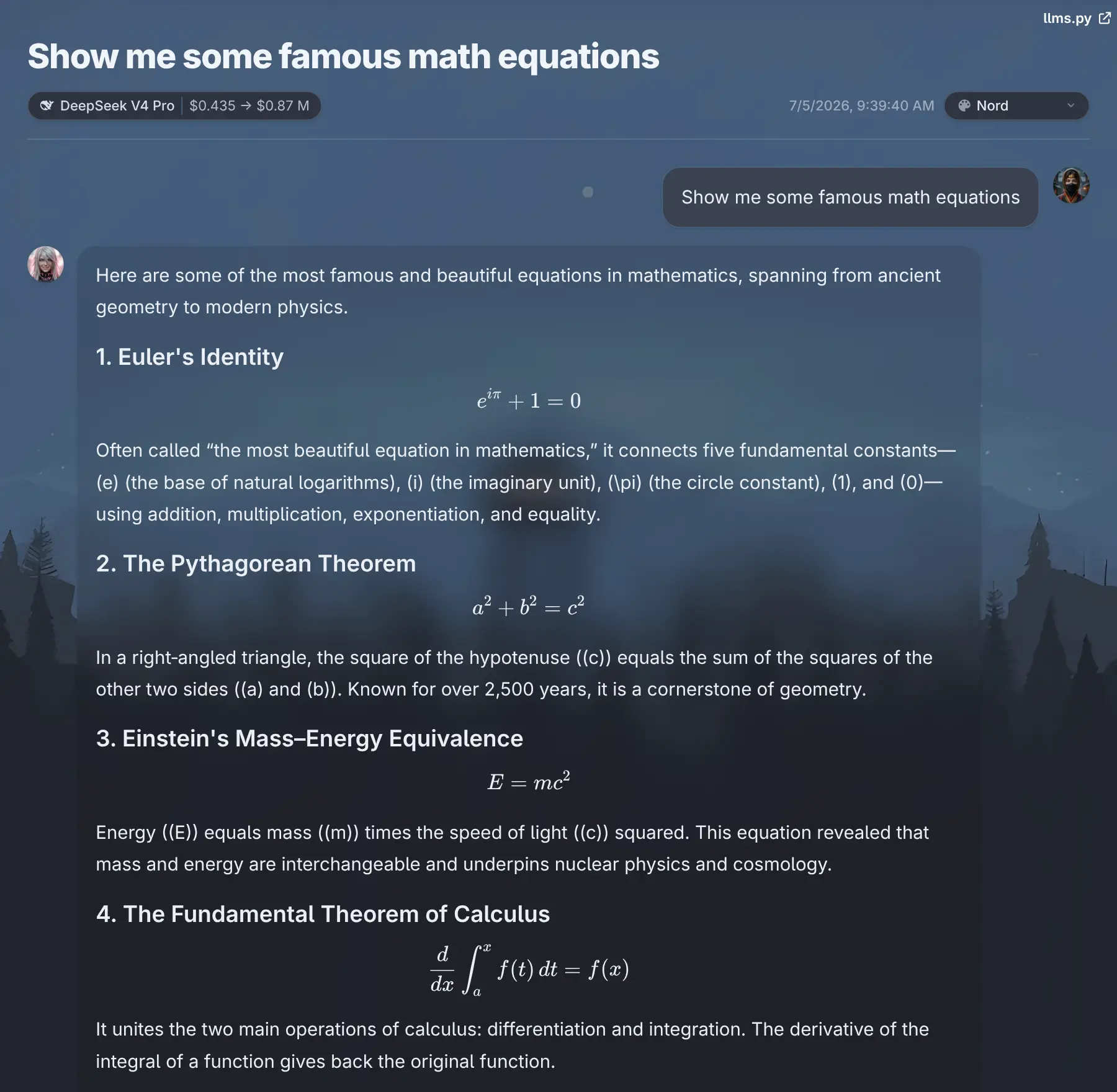
Nord
Click to view full size
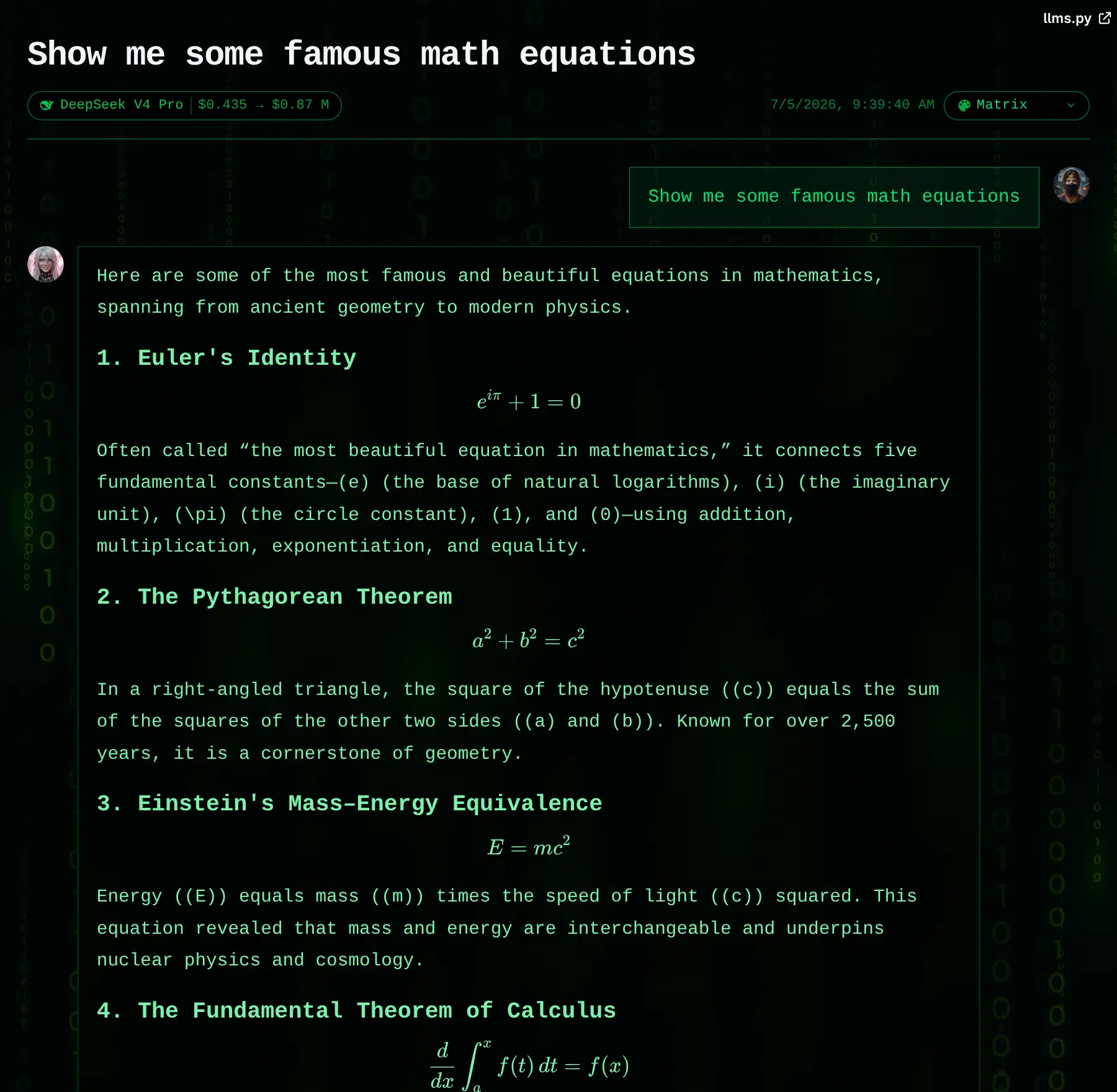
Matrix
Click to view full size
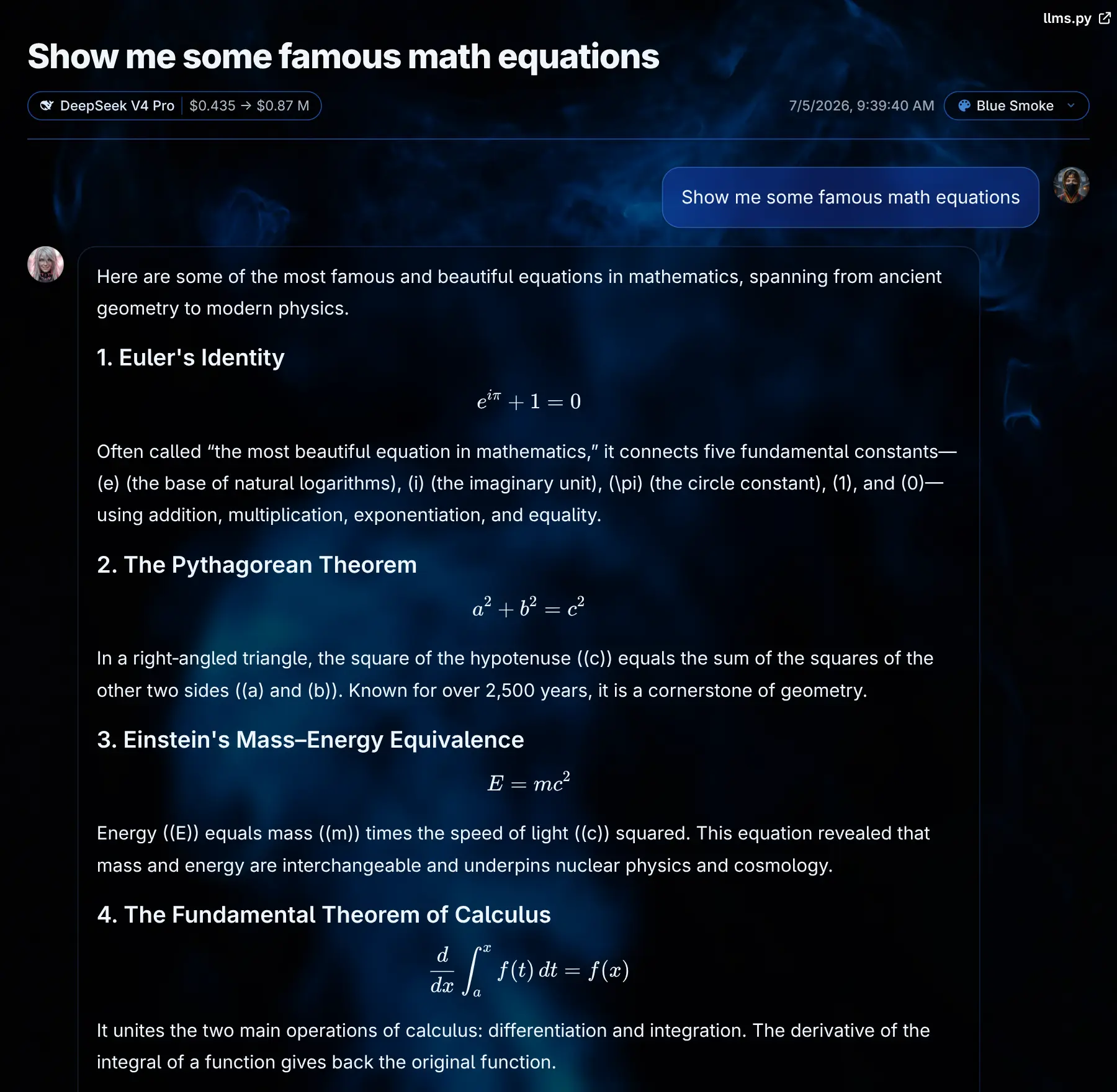
Blue Smoke
Click to view full size
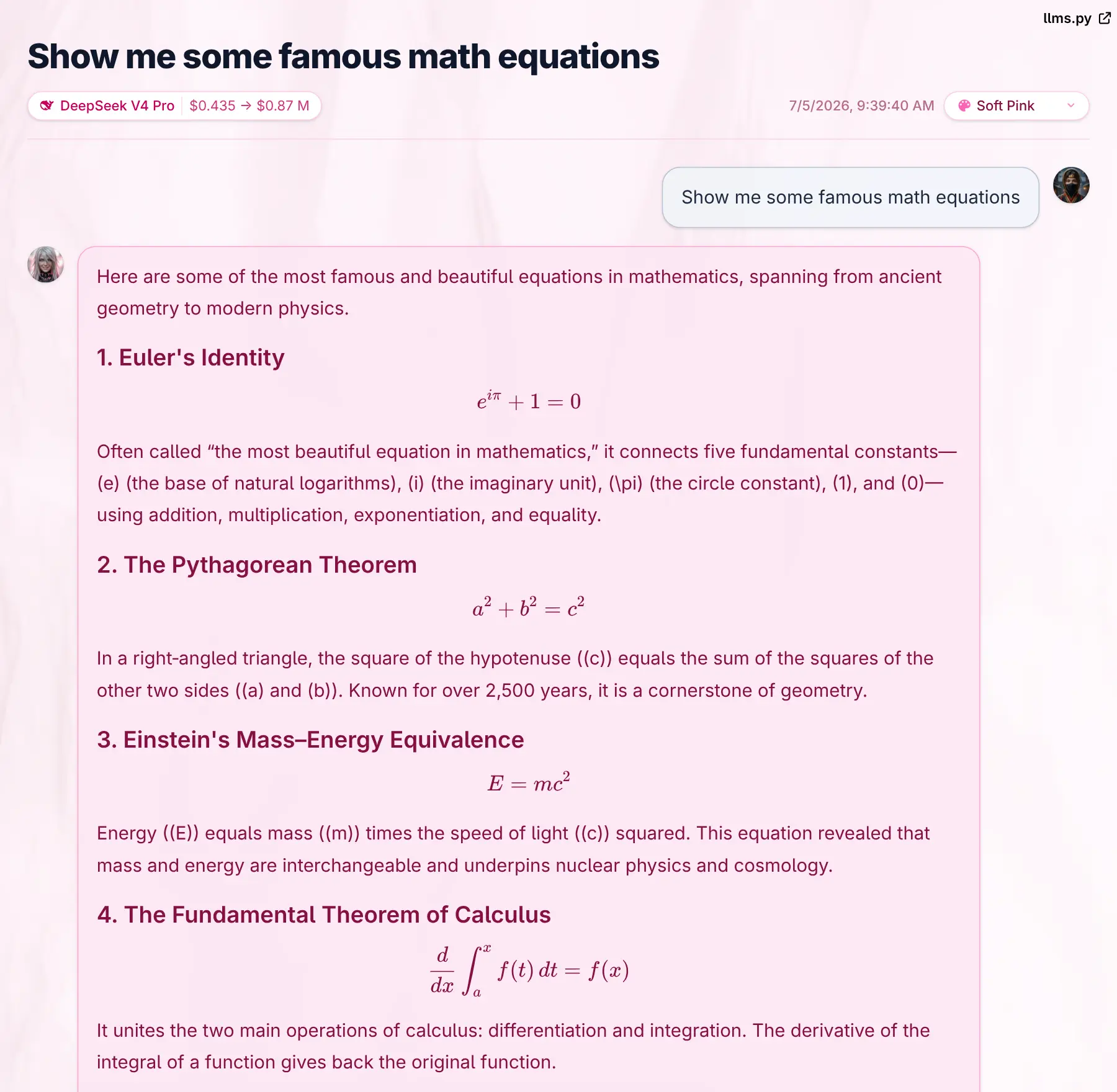
Soft Pink
Click to view full size
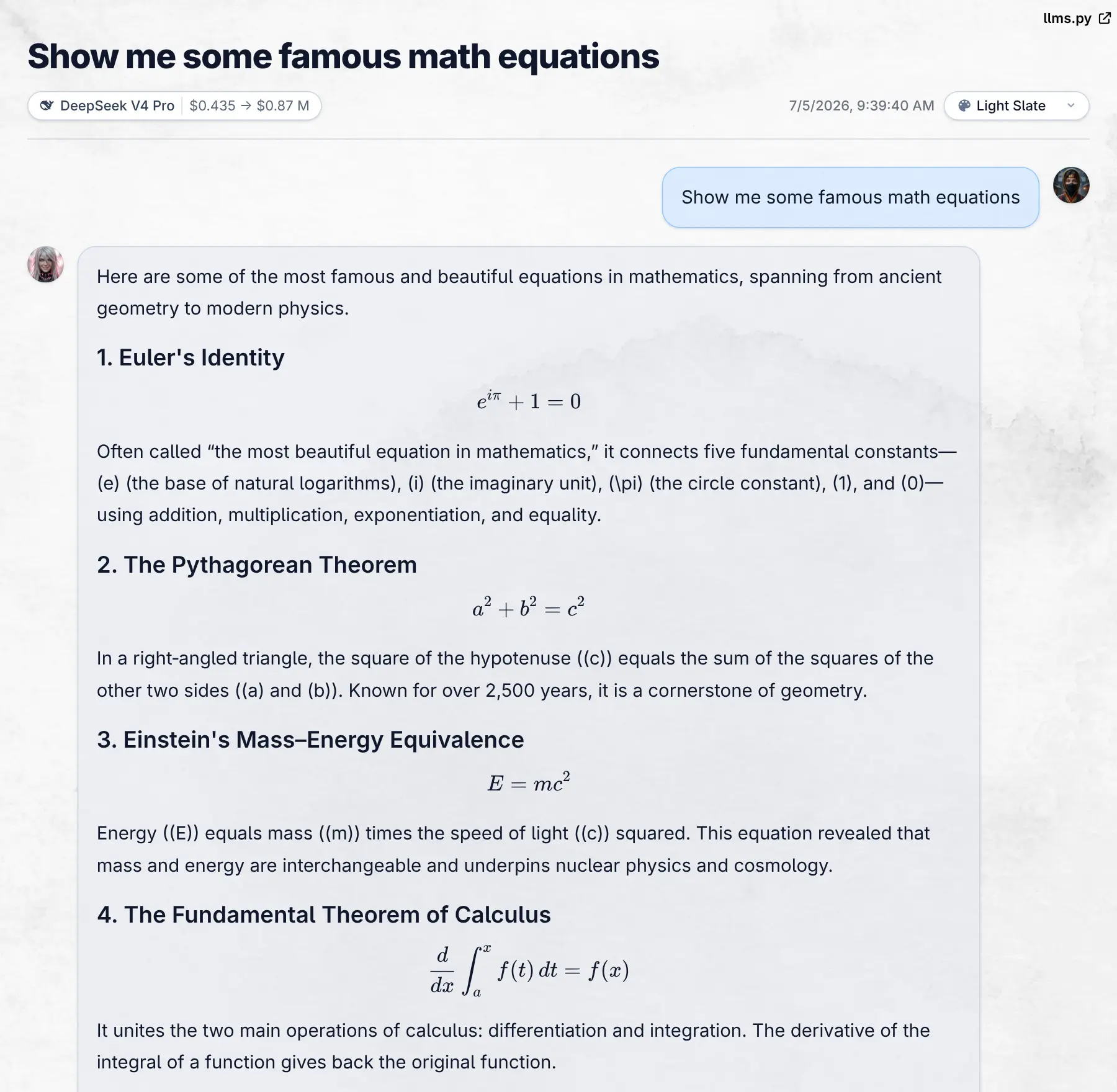
Light Slate
Click to view full size
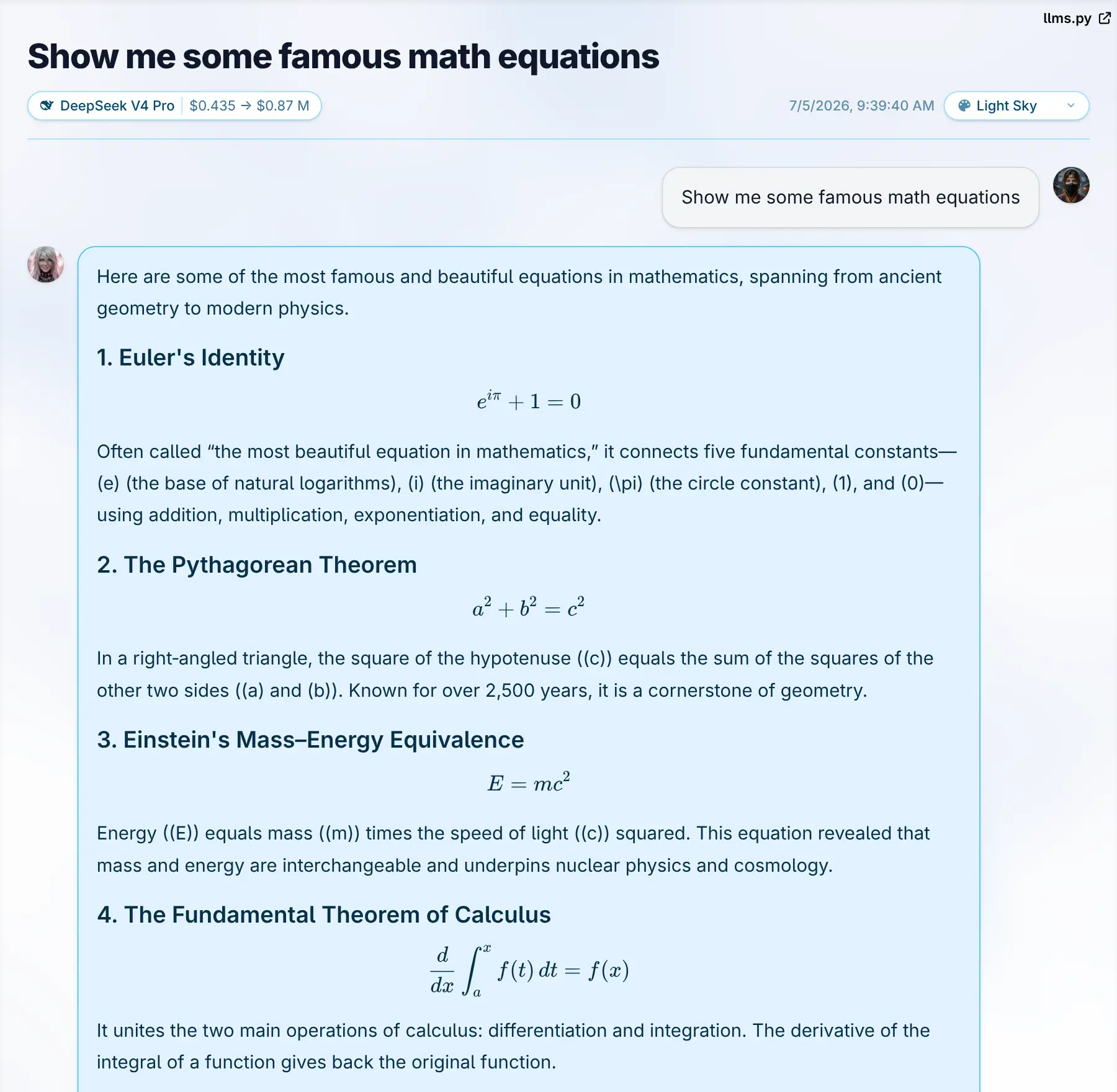
Light Sky
Click to view full size
Browse the Showcase
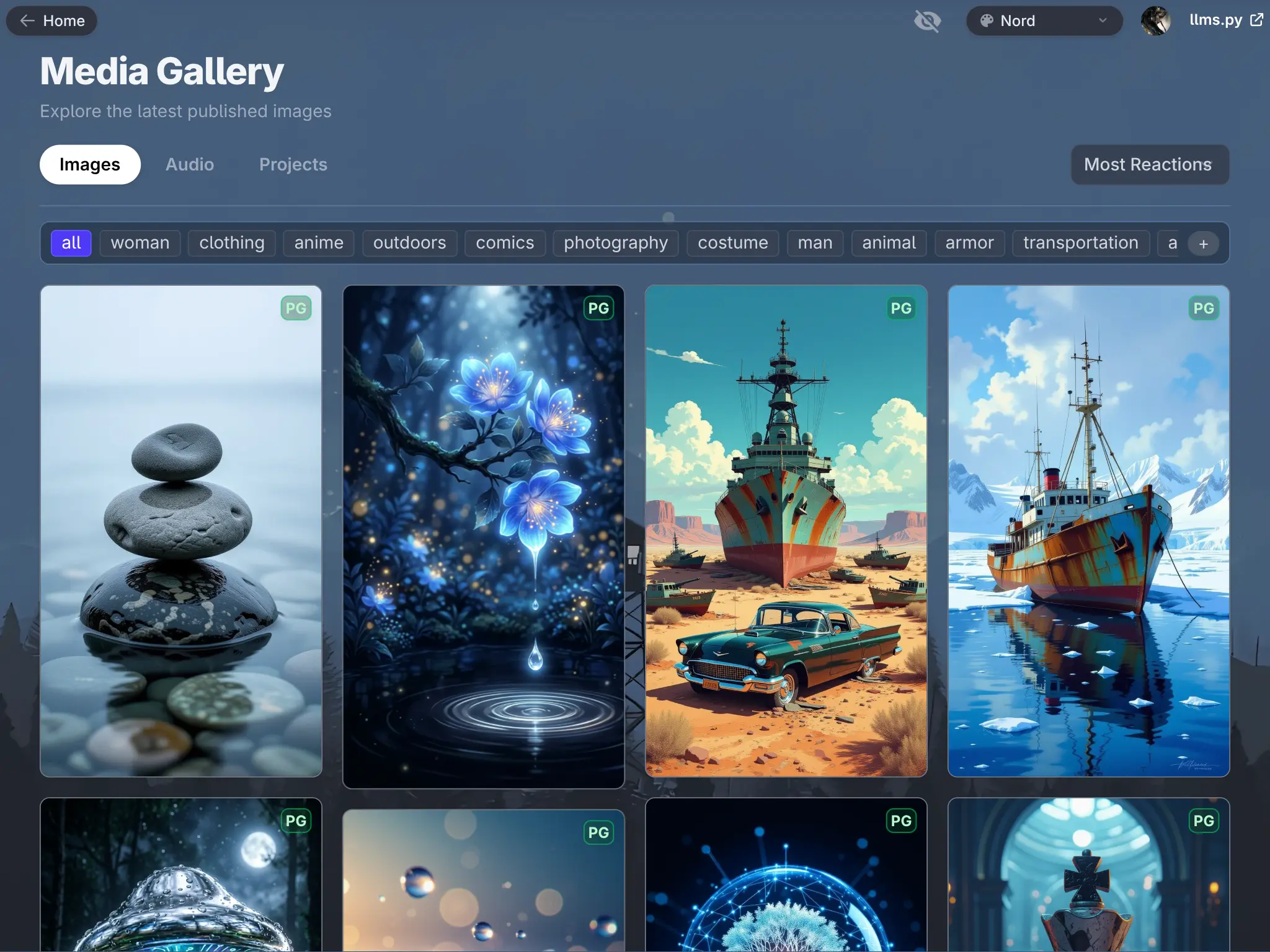
Content shared through share_llmspy is hosted on ai.llmspy.org - a public showcase where you can browse and discover the best AI-generated content shared by the community. Switch between the Images, Audio, and Projects galleries to explore what others have created:
Re-publishing
Already-published threads show a green Published status indicator with the timestamp. Hit Update Thread to push any new messages or edits to the same URL.
What Gets Published
- All user and assistant messages
- Code blocks with syntax highlighting
- Tables, lists, and formatted markdown
- User and assistant avatars
- Referenced images and media cached locally (uploaded automatically)
Publishing Projects
Use share_llmspy to deploy a static project - a game, web app, or any folder of HTML/JS/CSS - to a live public URL on ai.llmspy.org. For an account-free export, use Folder.
How to Publish
- Open a chat that belongs to the project (the project tab only appears for a chat in a project; with no chat open it uses the project last selected in the project manager).
- Open Share → ai.llmspy.org, connect an account if needed, and select Publish Project.
- The extension auto-detects your project's build/dist folder. You can change it manually or use the Browse button to pick a different folder.
- Click Publish Project.
- Your project is packaged as a tarball, uploaded, and a live URL is returned.
Build Directory Detection
The extension looks for a dist/ subfolder inside your project's configured paths. If it
finds one, it pre-fills the path automatically. You can override this at any time by editing
the text field or using the folder browser dialog.
Published Projects Gallery
Here are some example projects that have been published using this extension:
| Project | Description | Link |
|---|---|---|
| 🎮 2048 | Neon 2048 Arcade game | Play Neon 2048 |
| 🎮 Space Blocks | Space themed blocks and powerups | Play Space Blocks |
| 🎮 Breakout | Stunning sci-fi breakout game | Play Breakout |
| 👾 Pac Man | Stunning Sci-Fi Pacman | Play Pac Man |
| 🏓 Pong | A stunning pong Web App | Play Pong |
| 🚀 Galaga | Stunning sci-fi Galaga game in React | Play Galaga |
| ☄️ Asteroids | The classic Asteroids game | Play Asteroids |
| ⚙️ Pinball | Stunning Steampunk Workshop themed Pinball | Play Pinball |
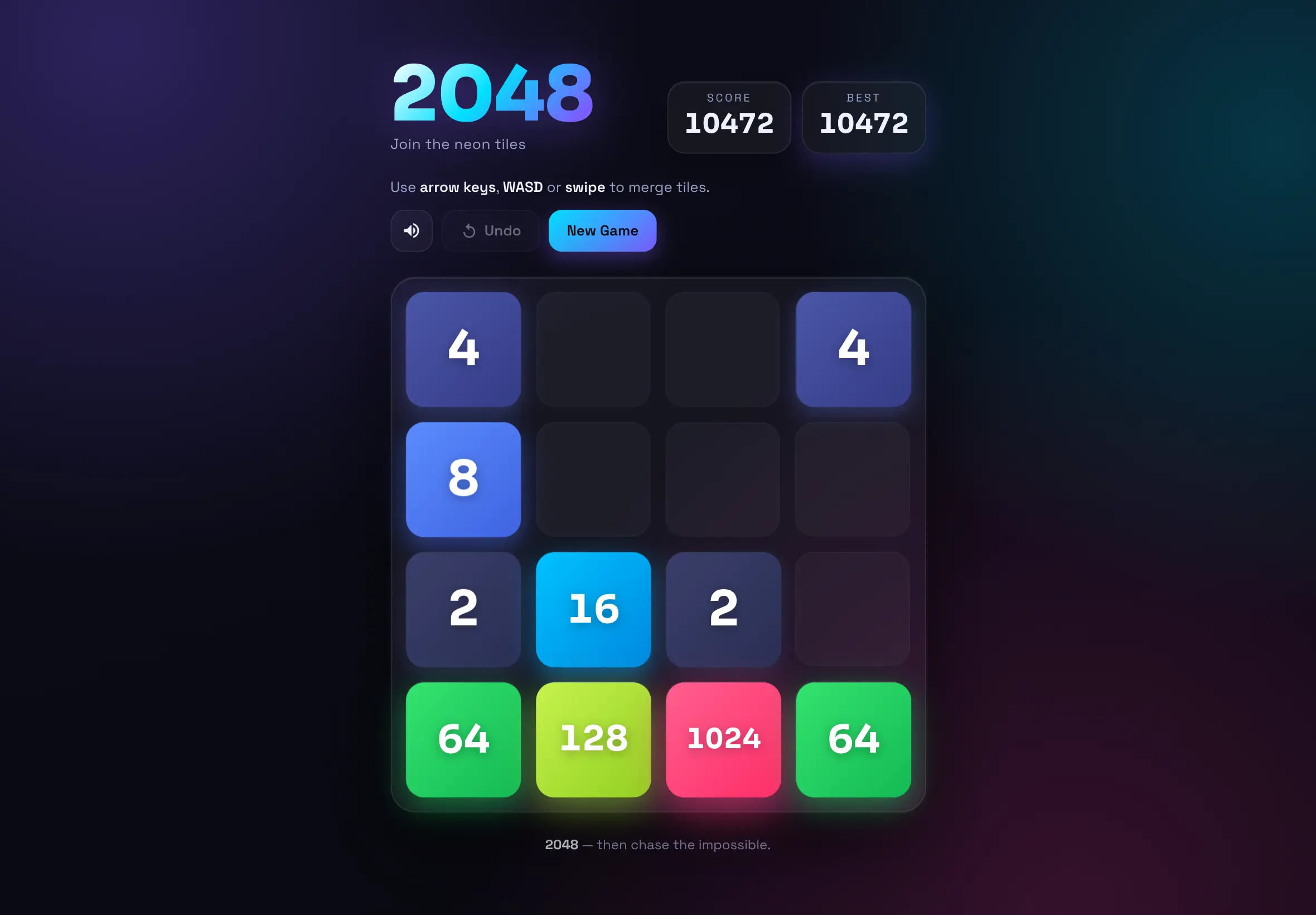
2048
Click to view full size
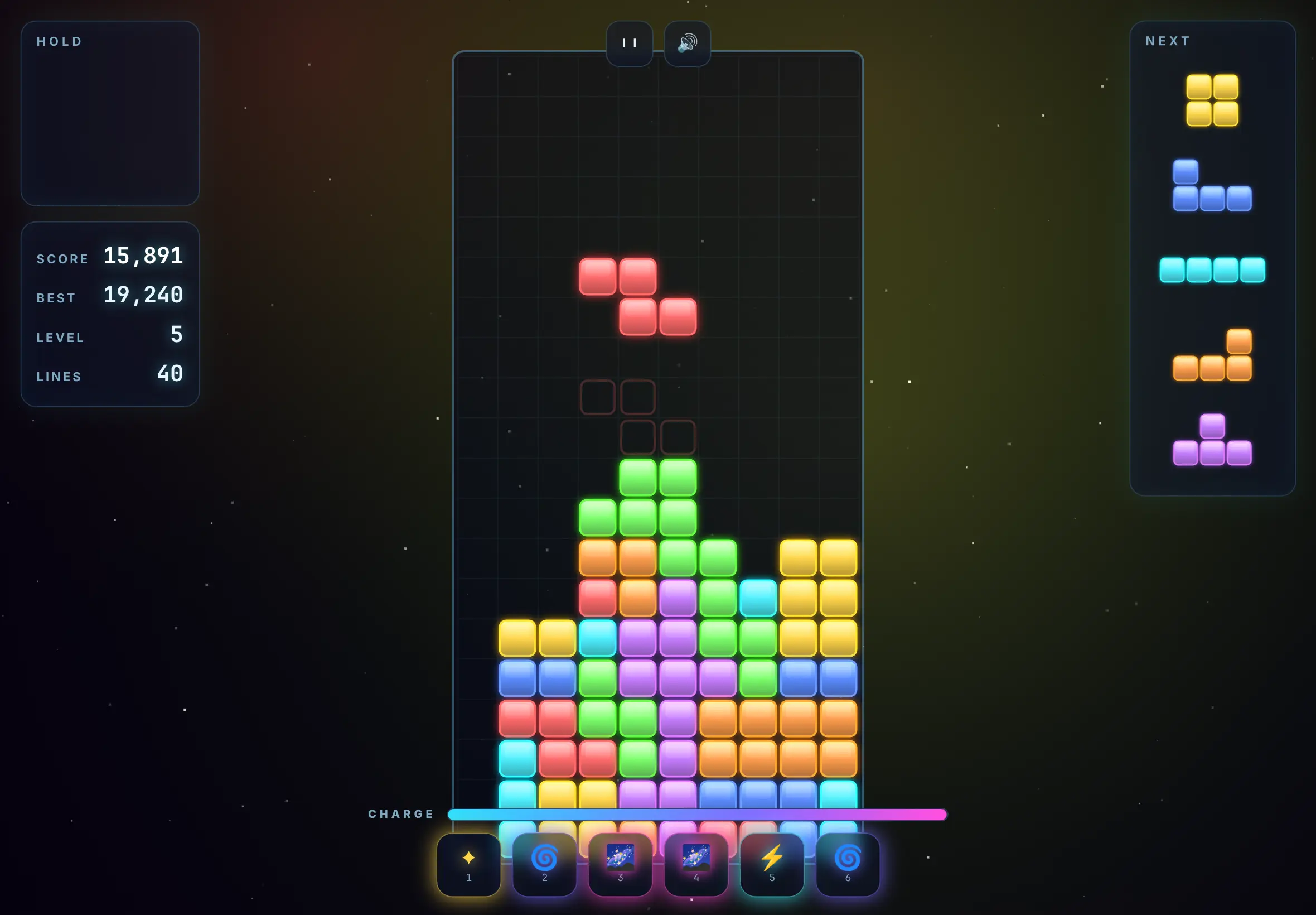
Space Blocks
Click to view full size
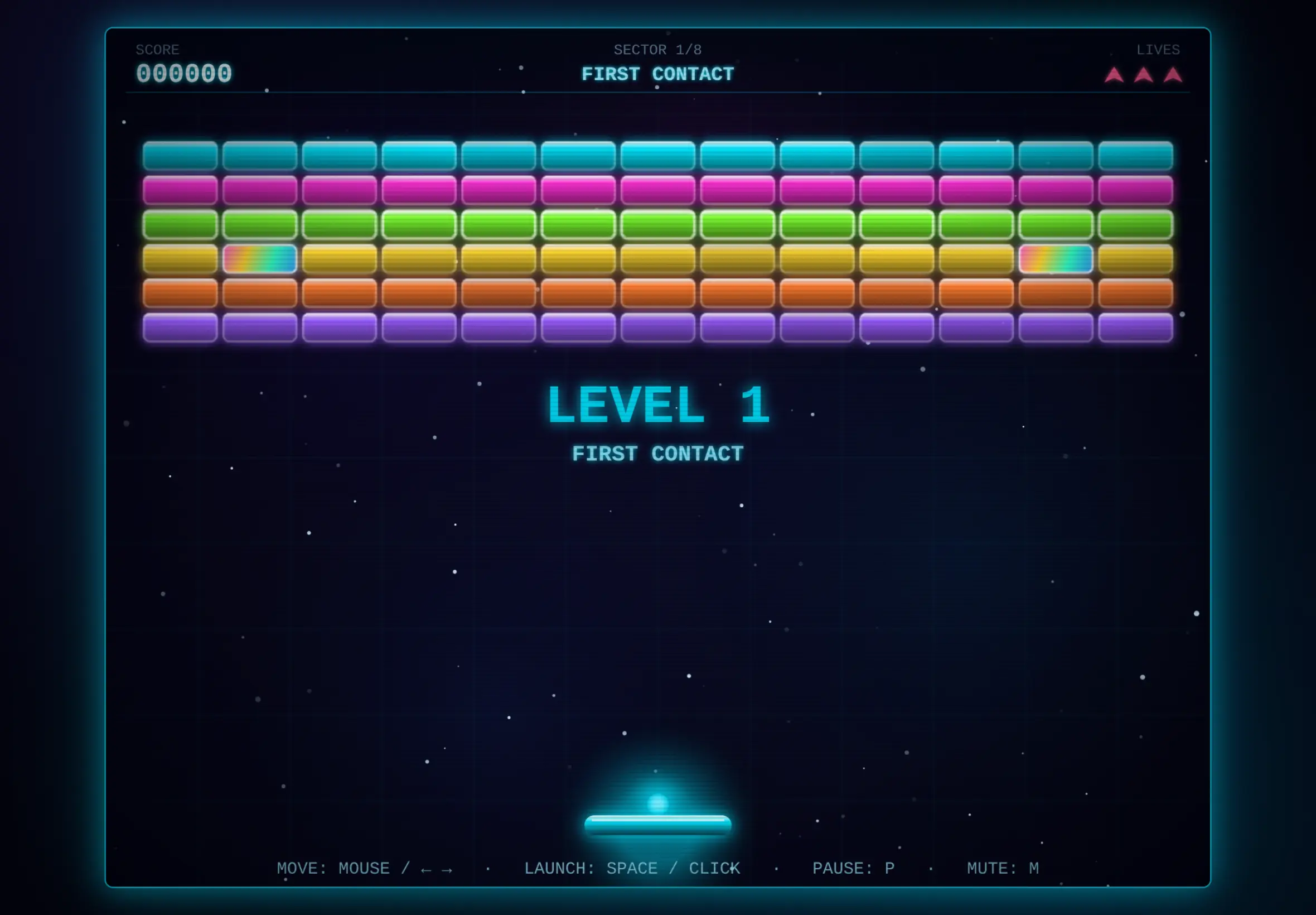
Breakout
Click to view full size
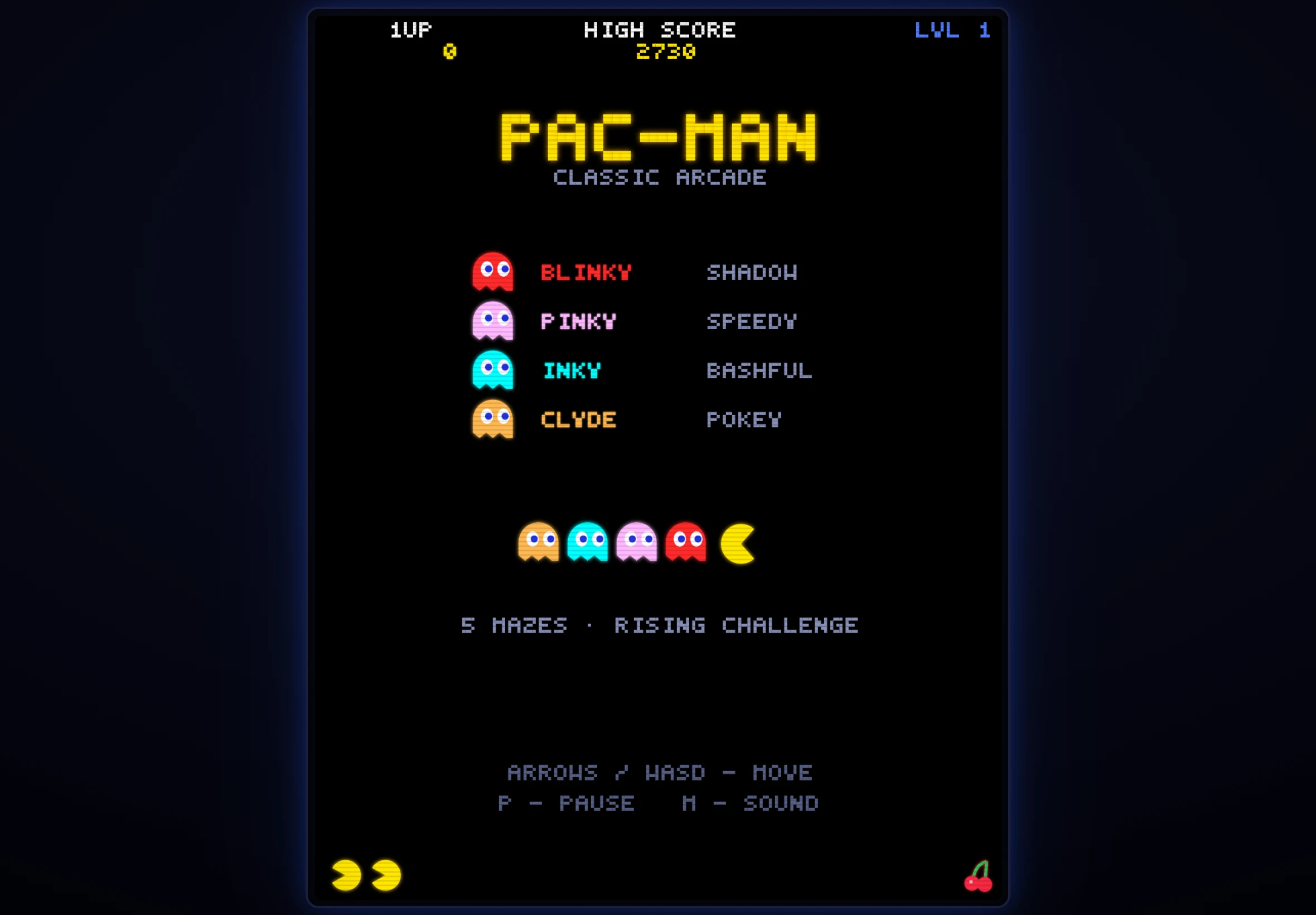
Pac Man
Click to view full size
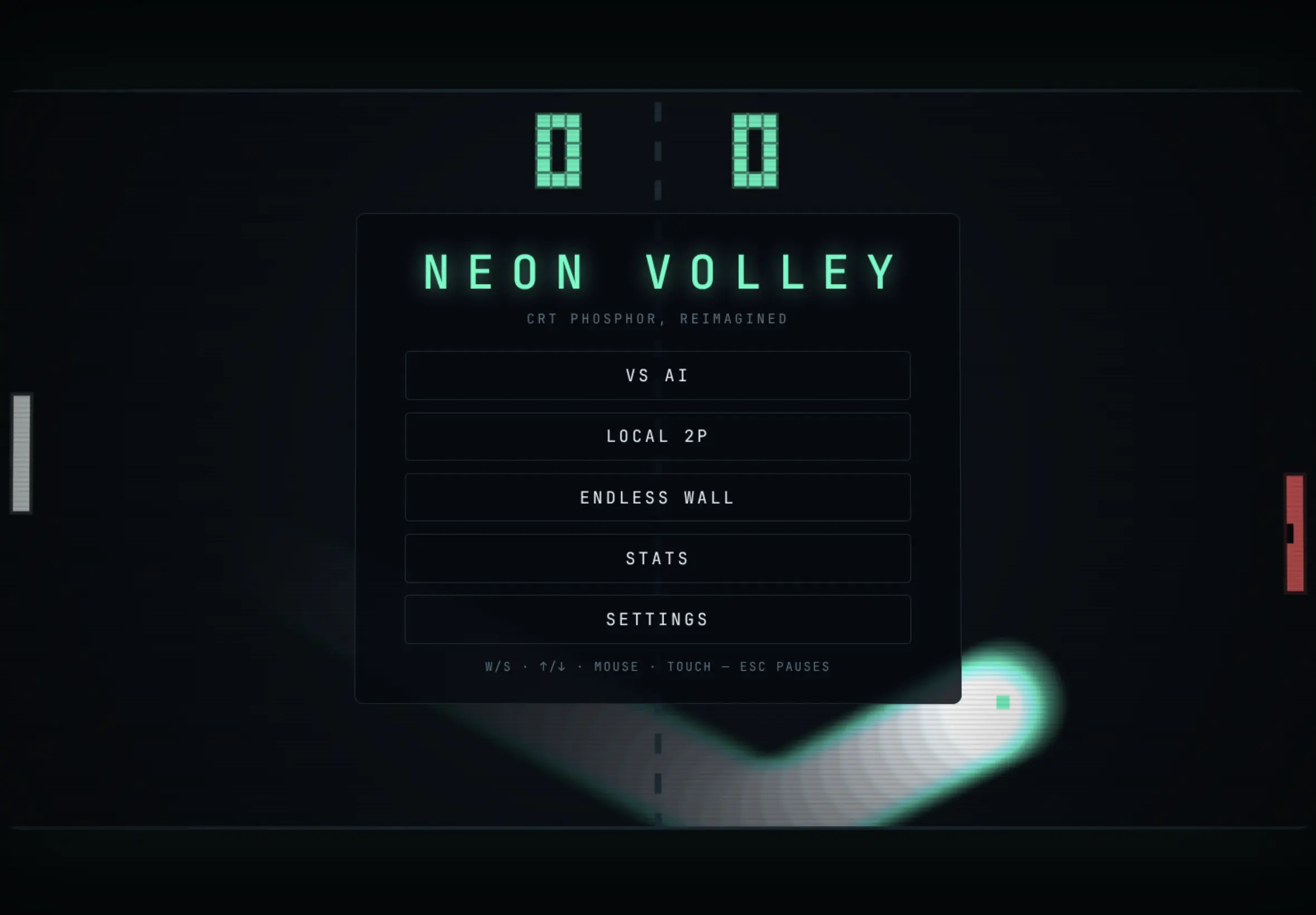
Pong
Click to view full size
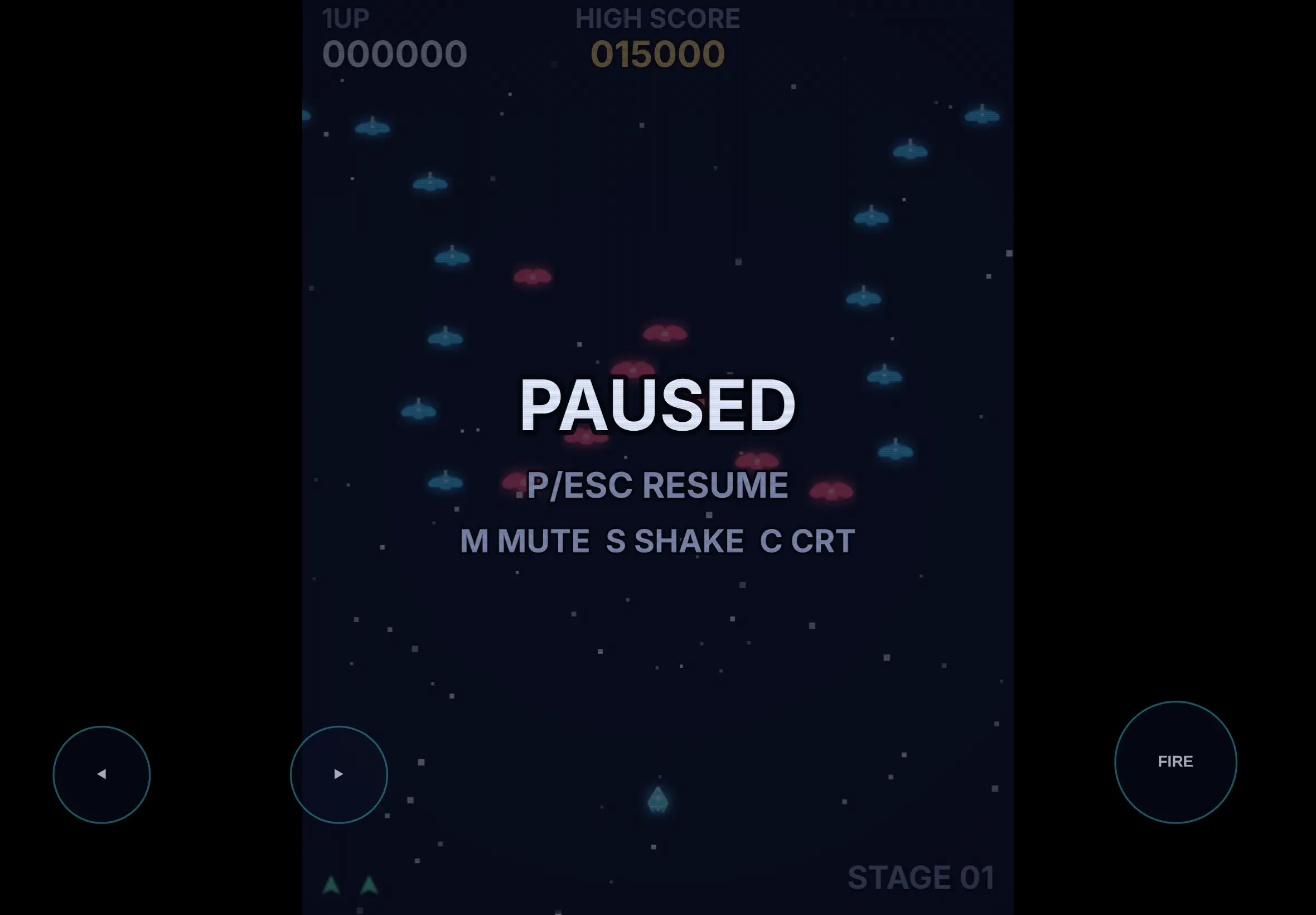
Galaga
Click to view full size
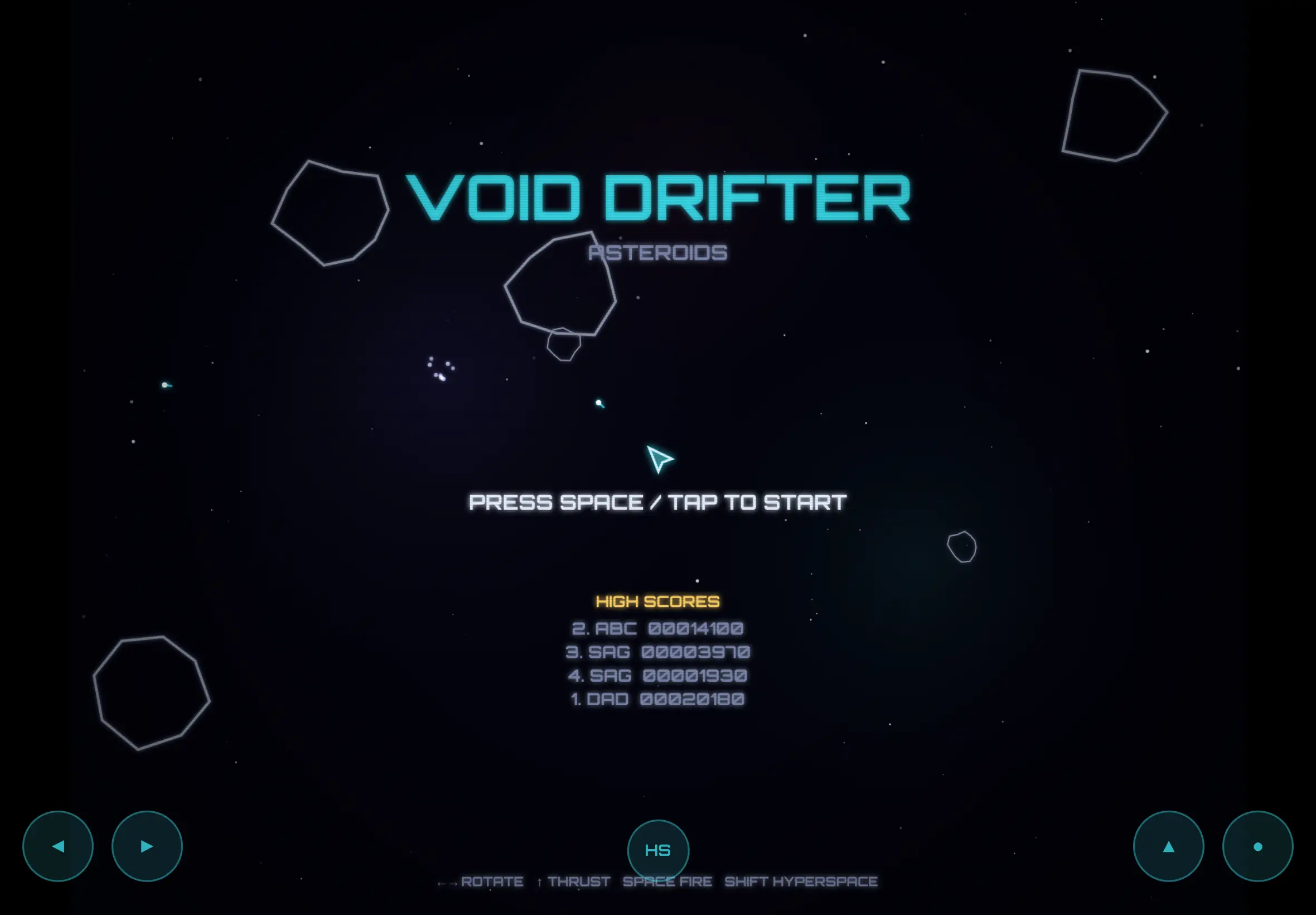
Asteroids
Click to view full size
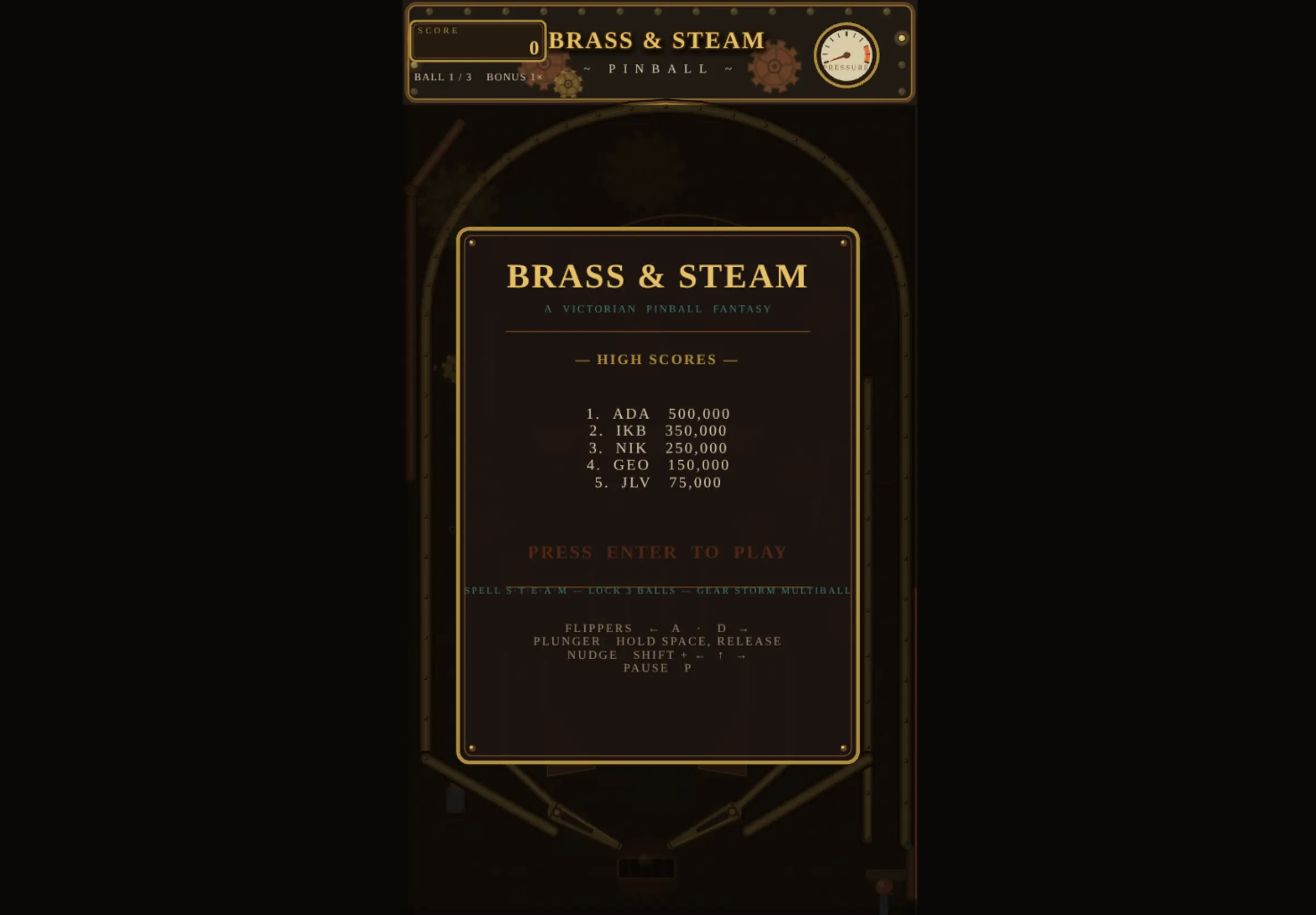
Pinball
Click to view full size
Publishing Images
Share AI-generated images directly from the media gallery lightbox.
How to Publish
- Open the Gallery and click on an image to open the lightbox.
- At the bottom of the lightbox, a Share Image button appears (only visible when your publisher account is connected).
- Click Share Image - the image and its metadata are uploaded.
- Once published, the button is replaced with a green Published indicator and a link to the public page.
What Gets Uploaded
- The full-resolution image file
- Sidecar metadata (model, prompt, dimensions, generation settings)
- Media type information
Publishing Audio
Share generated audio clips from the audio player.
How to Publish
- Locate an audio item in the audio player or media list.
- Click the share pill button next to the audio controls.
- A brief publishing... spinner appears while the file uploads.
- Once complete, the button transforms into a green open link pill that links to the public audio page.
Publishing Decision Recipes
Decision Studio uses share_llmspy to publish a saved recipe together with a matching successful local run. Enable the extension, select Share in the recipe header, connect your publisher account, choose the run, and review Preview or JSON before publishing. The definition, input, compiled prompt, normalized results, and saved usage examples become public; other history and raw provider responses stay local.
Public recipe links display the recorded result without requiring a model call. Update shared recipe explicitly replaces the snapshot and retains its URL. Stop sharing withdraws future public access; imported/downloaded copies remain usable. Deleting a local recipe does not delete its public share.
Use Import recipe → Collection to discover shared recipes with tags and sorting, or From JSON for a file/export URL. Imports are editable copies with one link to the original. Signed-in readers can star recipes in the collection or public gallery. Publishing and importing make no provider calls.
Quick Reference
| Content Type | Where to Find It | Action |
|---|---|---|
| Project folder | Share panel → Folder | Publish / Update folder |
| Chat Thread | Share panel → ai.llmspy.org → Publish Chat Thread | Publish / Update Thread |
| Remote project | Share panel → ai.llmspy.org → Publish Project | Publish Project |
| Image | Gallery lightbox footer | Share Image |
| Audio | Audio player actions | share |
| Decision recipe | Decision Studio → recipe header | Share / Update shared recipe |
Disconnecting
To unlink your publisher account:
- Open Share → ai.llmspy.org.
- Click Connected: @username in the top-right.
- Click Disconnect in the dropdown.
Your API key will be removed locally. Previously published content remains accessible at its public URL until you remove it from the hosting platform.
Upgrading Sharing Configuration
Use share_llmspy as the remote extension ID in disable lists, extension scopes, and extension API paths
(/ext/share_llmspy/...). Static exports belong to share_static; move any former top-level
staticPublish settings into user/default/share_static/config.json.
Remote account settings are stored in user/<username>/share_llmspy/config.json. Legacy
user/<username>/publish/config.json account files remain readable, migrate on the next save, and are
removed on disconnect. Named users do not inherit another account's publisher credentials.