Projects
The Projects feature provides a secure workspace management system. It allows users to define single or multiple allowed folders that AI Agents are permitted to read from and write to. This sets up a security sandbox, preventing agents from accessing or modifying files outside designated directories.
Key Concepts
- Workspace Sandboxing: Restricts the filesystem tools (e.g. read, write, edit, search, and list) to the active project's paths.
- Path Aliases:
$WORKSPACE: Resolves to the current working directory where thellms.pyserver is running.$TEMP: Resolves to the system temporary directory.
- Custom Directories: Supports any absolute directory path on the local filesystem.
- Automatic Folder Creation: Non-existent folders listed under a project's custom paths are automatically created upon saving.
Managing Projects in the UI
-
Accessing the Project Manager:
- Click the Workspaces & Projects dropdown (top-left of the application header, displaying the active project name or Default Workspace).
- Select Manage Projects to open the project manager interface.
-
Creating & Editing Projects:
- New Project: Click New Project to start.
- Project Name & Description: Provide a unique name and optional description.
- Enabling Path Aliases: Check
WORKSPACEorTEMPto quickly include standard directories. - Adding Custom Paths: Click Add Custom Path and type absolute directory paths (e.g.,
/home/user/workspace/my-app). - Click Save to apply. Any newly specified custom directories that do not exist yet will be automatically created on the server.
-
Deleting Projects:
- To delete a project, select it in the project manager list and click the Delete Project button in the bottom left. Deleting the active project automatically resets the system back to the Default Workspace.
Selecting an Active Project
Use the project selector dropdown in the header to switch between defined projects:
- Default Workspace: No active project restriction (defaults to the root allowed directories specified when starting the server).
- Custom Projects: Restricts all AI agent filesystem interactions exclusively to the selected project's folders.
Technical Configuration Details
Projects are persisted locally in a JSON file format under the user's data directory:
- Default Path:
~/.llms/projects/projects.json(e.g.,~/.llms/projects/projects.json). - User-Specific Path (when authenticated via GitHub OAuth):
~/.llms/user/{username}/projects/projects.json.
Schema Example (projects.json):
[
  {
    "name": "Tic Tac Toe",
    "description": "Creating a Tic Tac Toe game in React",
    "paths": [
      "$WORKSPACE",
      "/home/user/src/tic-tac-toe"
    ]
  }
]
Planner → Coder Workflow
A common and effective pattern is to use the Planner and Coder profiles together in a two-phase workflow:
-
Plan - Open a new thread with the Planner profile and describe what you want to build. The Planner will break the goal down into a structured architecture plan. You can then click Save to PLAN.md to persist the plan to your working directory, or Execute Plan to hand it directly to the Coder without saving.
-
Implement - Once the plan is ready, click Execute PLAN.md (or Execute Plan) to switch to the Coder profile. The Coder reads the plan and implements it step by step, writing the actual code to disk.
This separation keeps planning and implementation concerns distinct - the Planner focuses on what to build and how to structure it, while the Coder focuses on writing the code.
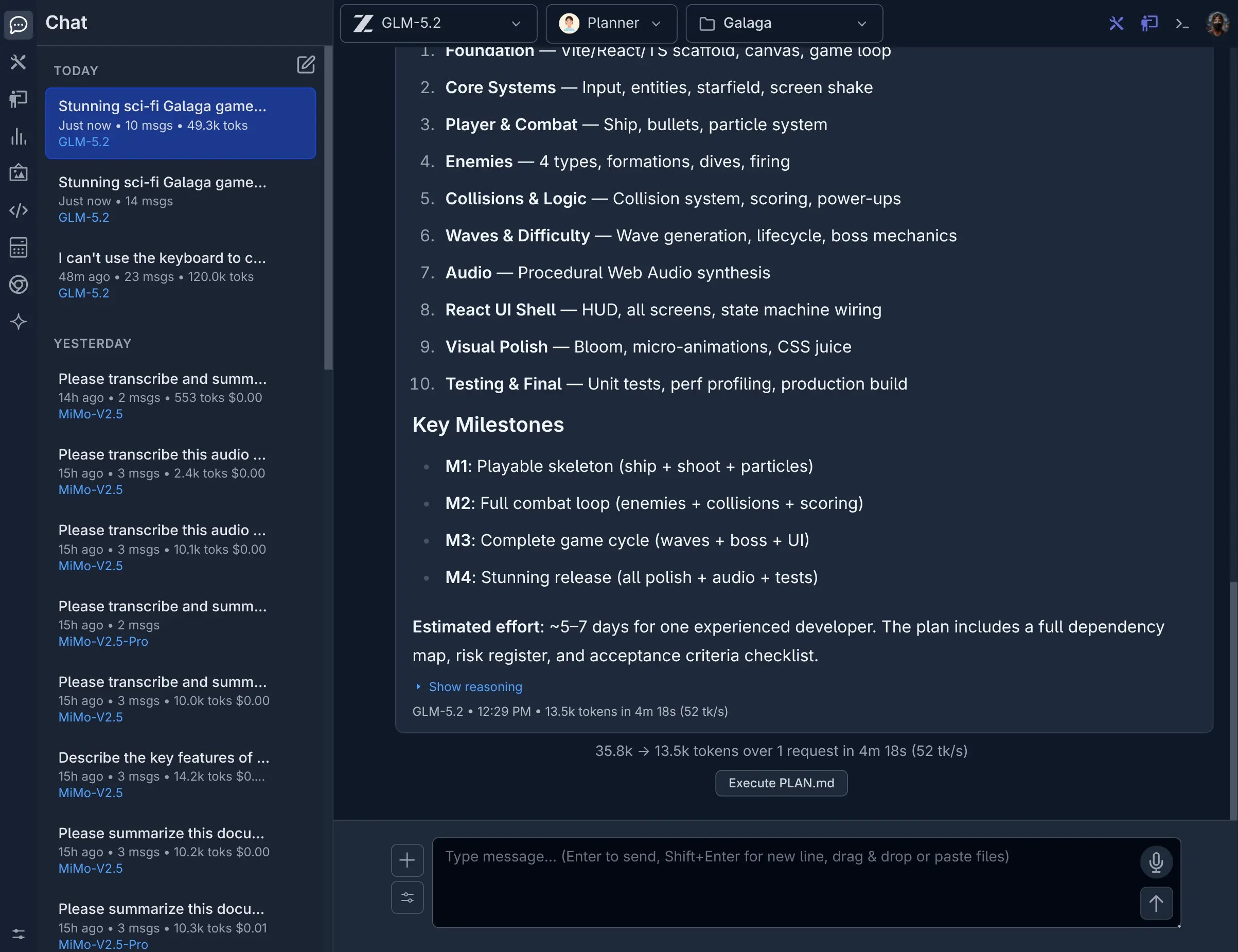
Planner
Click to view full size
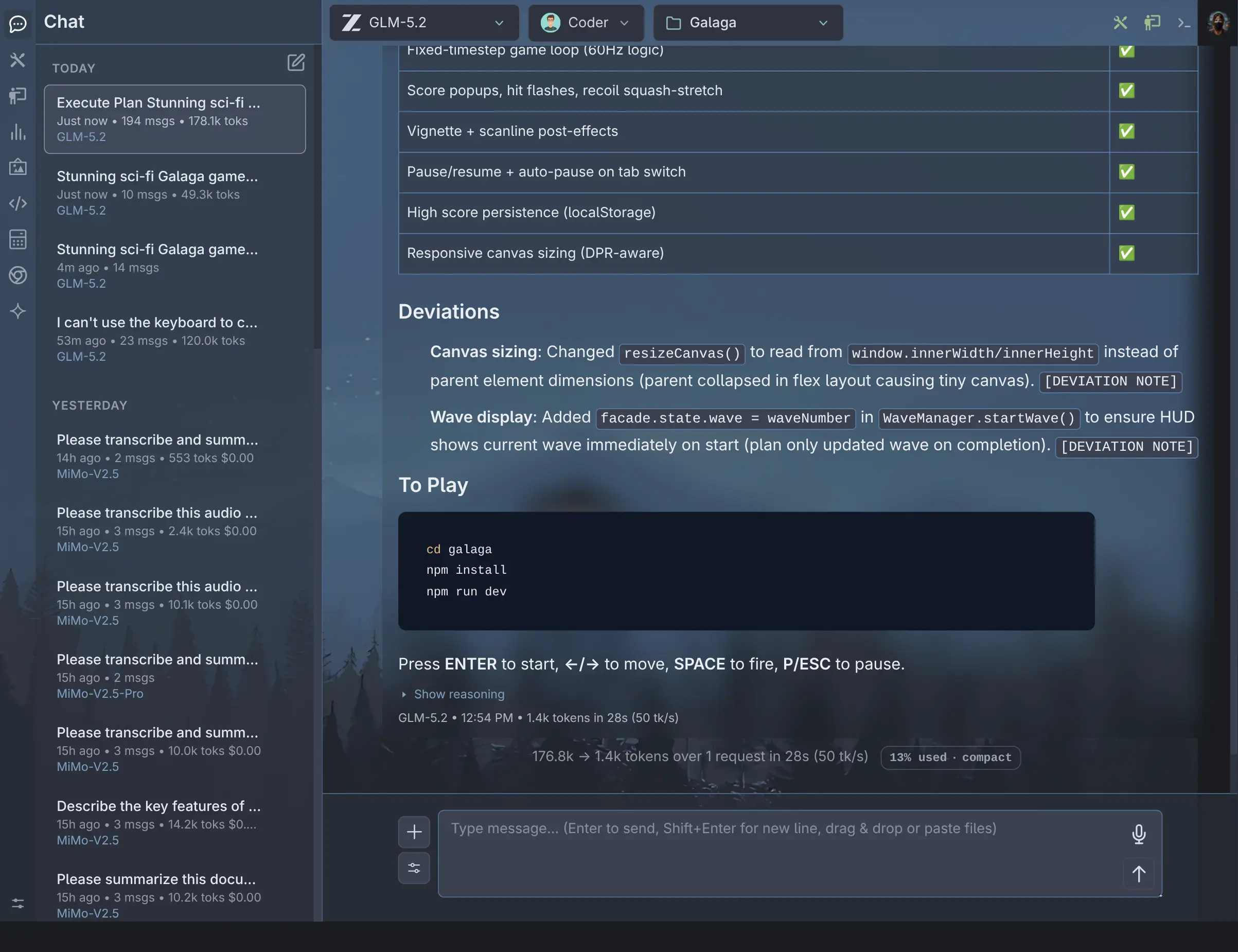
Coder
Click to view full size
Example: Sci-Fi GALAGA Game
The screenshots below show this workflow in action. The Planner was given the prompt "Build a Sci-Fi GALAGA game" and produced a full code architecture plan which was saved to PLAN.md. The Coder then read PLAN.md and implemented the complete game.
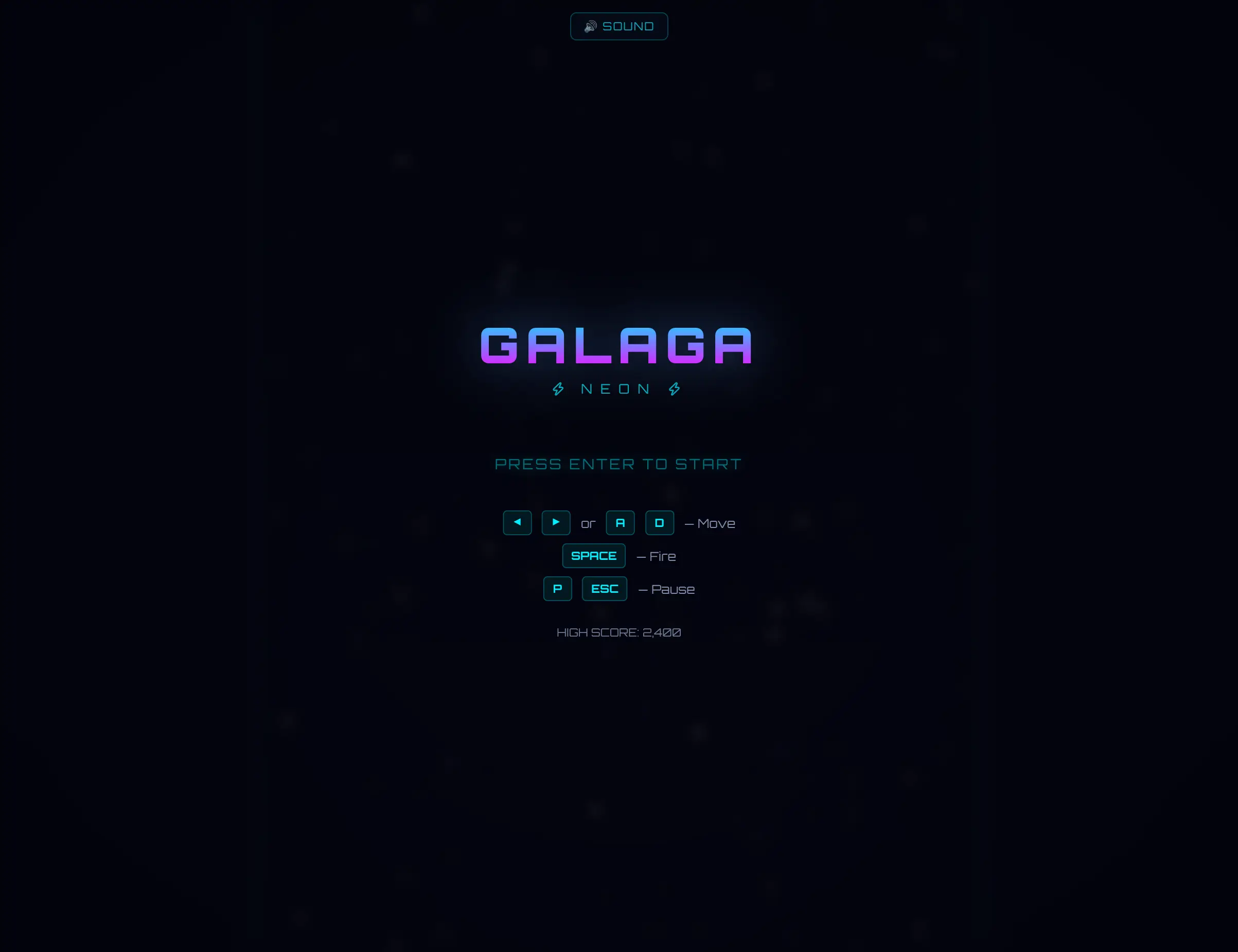
Galaga Menu
Click to view full size

Galaga Game
Click to view full size